How to make a highlight from Sony camera footage
Published · Updated
Short answer
Sony cameras such as the FDR-X3000 Action Cam, the ZV-1 II, the ZV-E10 II and the RX0 II store movies as MP4 files in XAVC S or XAVC HS. Copy the files from the CLIP folder (not the SUB proxy folder) to your computer, upload them to RawClip unchanged, and choose a highlight length from the options the analysis prepares.
What you need
- A Sony Action Cam, ZV-series or RX0-series camera and its memory card
- A card reader or a USB cable with the camera in mass storage mode
- A computer with a modern browser
- Or a Google Drive folder holding the movies
Step by step
-
Find the movies in the CLIP folder
On ZV and Alpha-style cameras Sony keeps stills in DCIM, movies in CLIP and proxy movies in SUB. The files you want are in CLIP and are named C0001.MP4, C0002.MP4 and so on by default. The SUB folder holds small proxies used for proxy editing; they add nothing to a highlight.
The FDR-X3000 Action Cam uses the same idea with XAVC S or MP4 recording, and all of these files are standard MP4 containers.
-
Allow for 4 GB splits on SDHC cards
Sony help guides note that on SDHC cards a long movie is divided into 4 GB files. A bike ride filmed on an older card can therefore be several C-files in a row. Copy them all; they are put back in order by recording time.
Newer ZV-E10 II settings record XAVC HS in HEVC as well, up to 4K 60p in 10-bit. Some computers cannot preview HEVC, but the upload does not depend on that.
-
Upload the Sony files from your computer
Open a new highlight in RawClip and drop in every C-file from the shoot. Do not spend time trimming or deleting takes; the analysis looks through all of them and decides which seconds are worth keeping.
Clips from other cameras can go into the same order. A ZV-1 II on a tripod and a GoPro on the helmet make one highlight together.
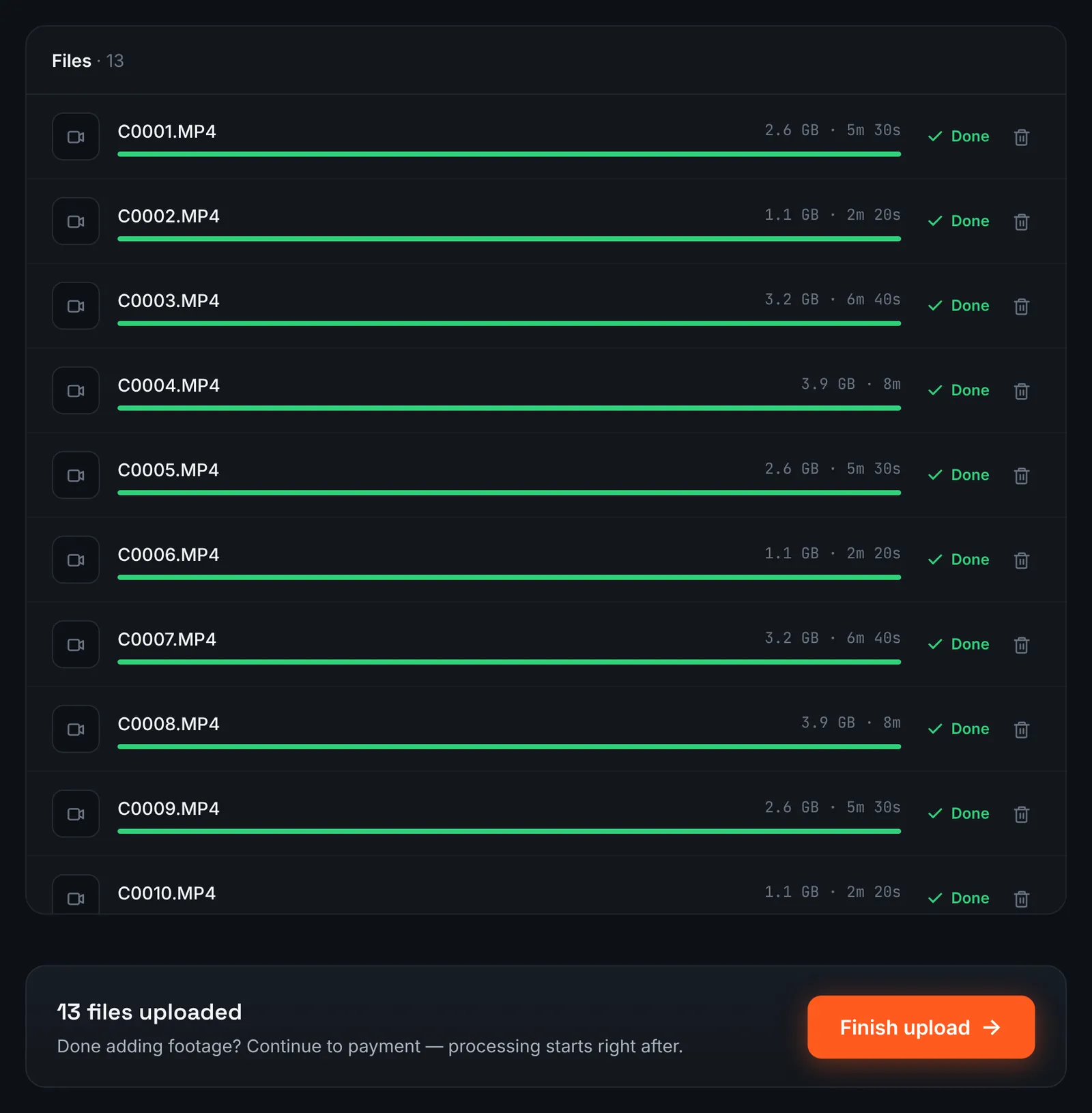
Sony movie files from the CLIP folder, uploaded from the computer. -
Or paste the Google Drive folder
Movies already copied to Google Drive can be sent by link. Share the folder with "Anyone with the link", select Google Drive link in RawClip and paste it; RawClip downloads the files itself.
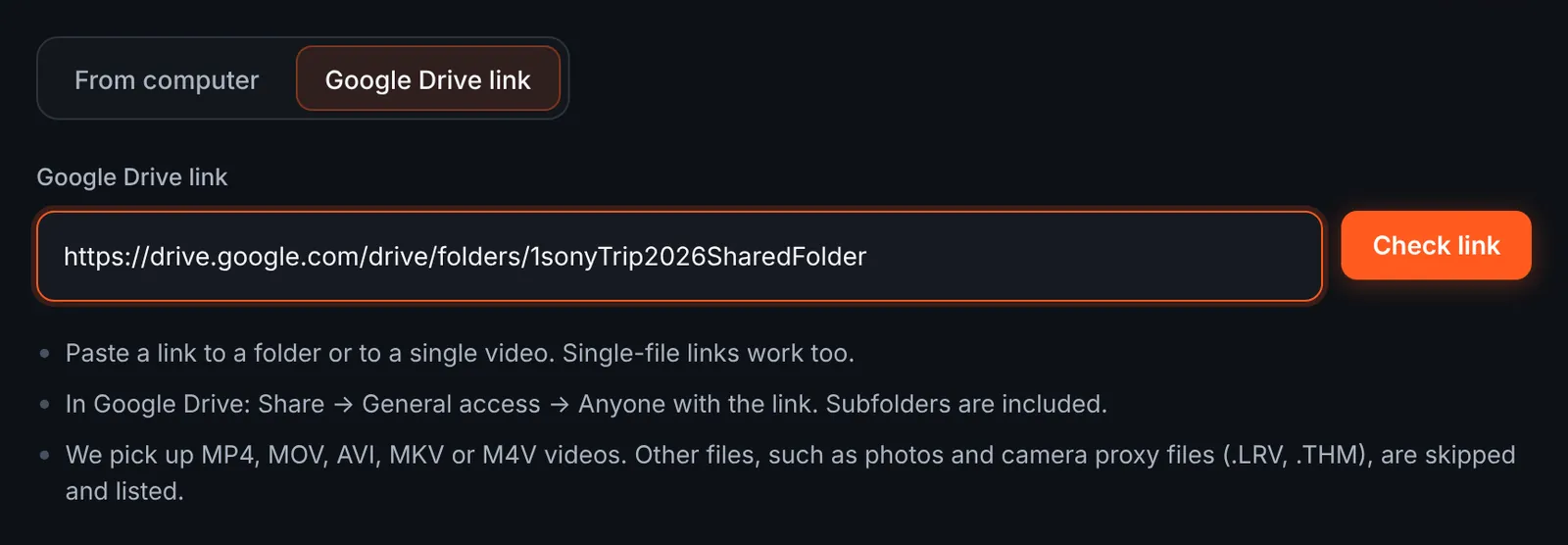
Sending the Sony movies as a Drive folder link. -
Look over the found videos
The checked folder appears as a list of C-files with lengths and sizes. Anything that is not a supported video, such as sidecar or proxy files that came along with the copy, is skipped and listed, so the download contains only the movies you ticked.
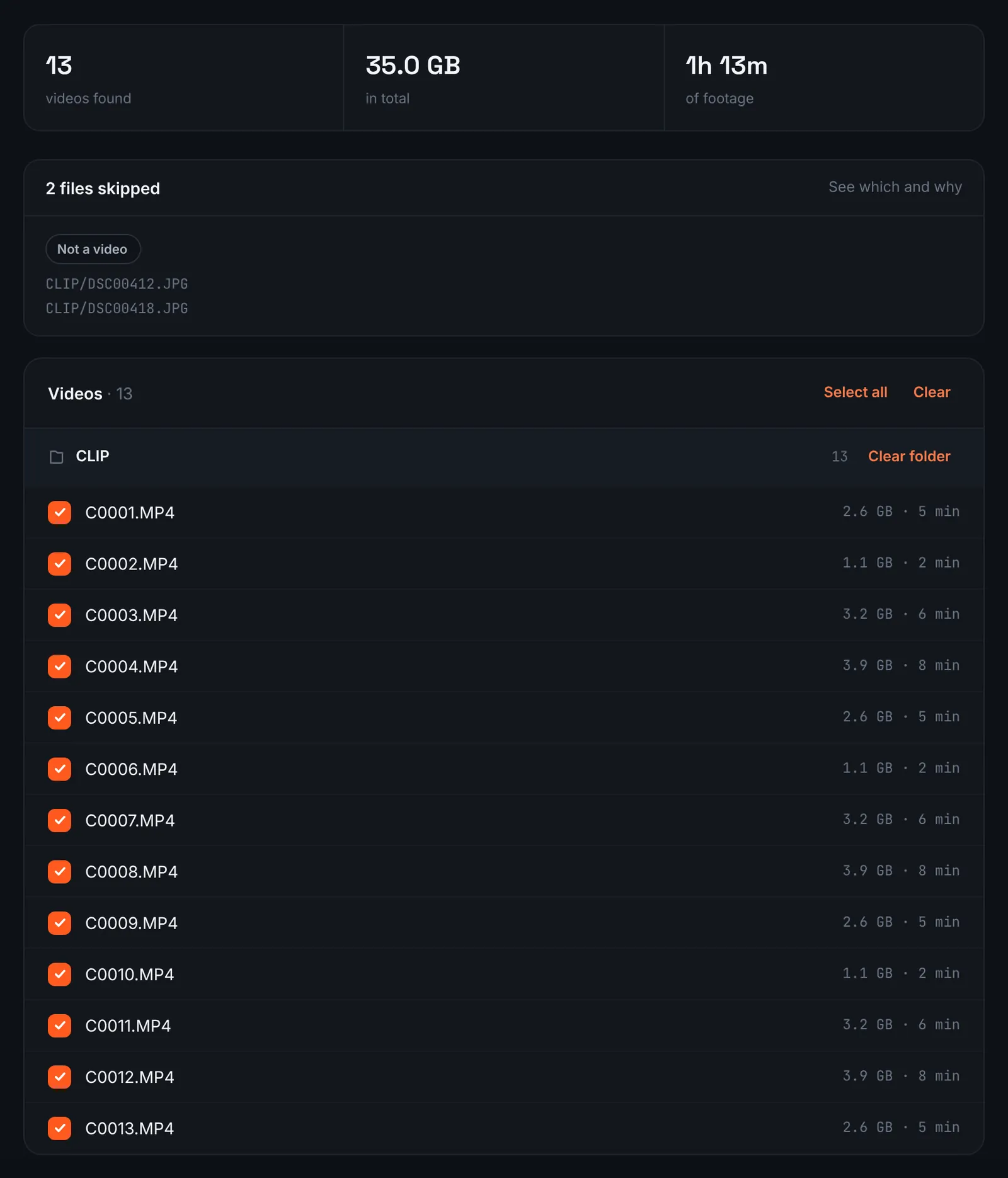
Sony movies found in Drive, ready to download. -
Pay and start the analysis
Press Finish upload to see the price, which depends only on the total length of the movies: $9.90 for up to 1 hour, $19.90 for up to 6 hours, $39.90 for up to 12 hours, $79.90 for up to 24 hours. Orders under 1h of footage are processed first and paid later: you watch a watermarked 480p preview and pay only to unlock the 4K and 1080p files. Processing begins on its own, and RawClip emails you when the length can be chosen.
-
Pick from the calculated lengths
Each row on the choose screen is a quality bar with the number of clips it keeps and an estimated duration. These numbers are calculated from the Sony footage itself, so you never have to guess a target length that the material cannot fill.
Music can be switched on or off before the render. For 3 days after the highlight is ready you can re-cut it to another length or switch the music on or off without a new upload: the first 3 re-cuts are free, each one after that is $2.90.
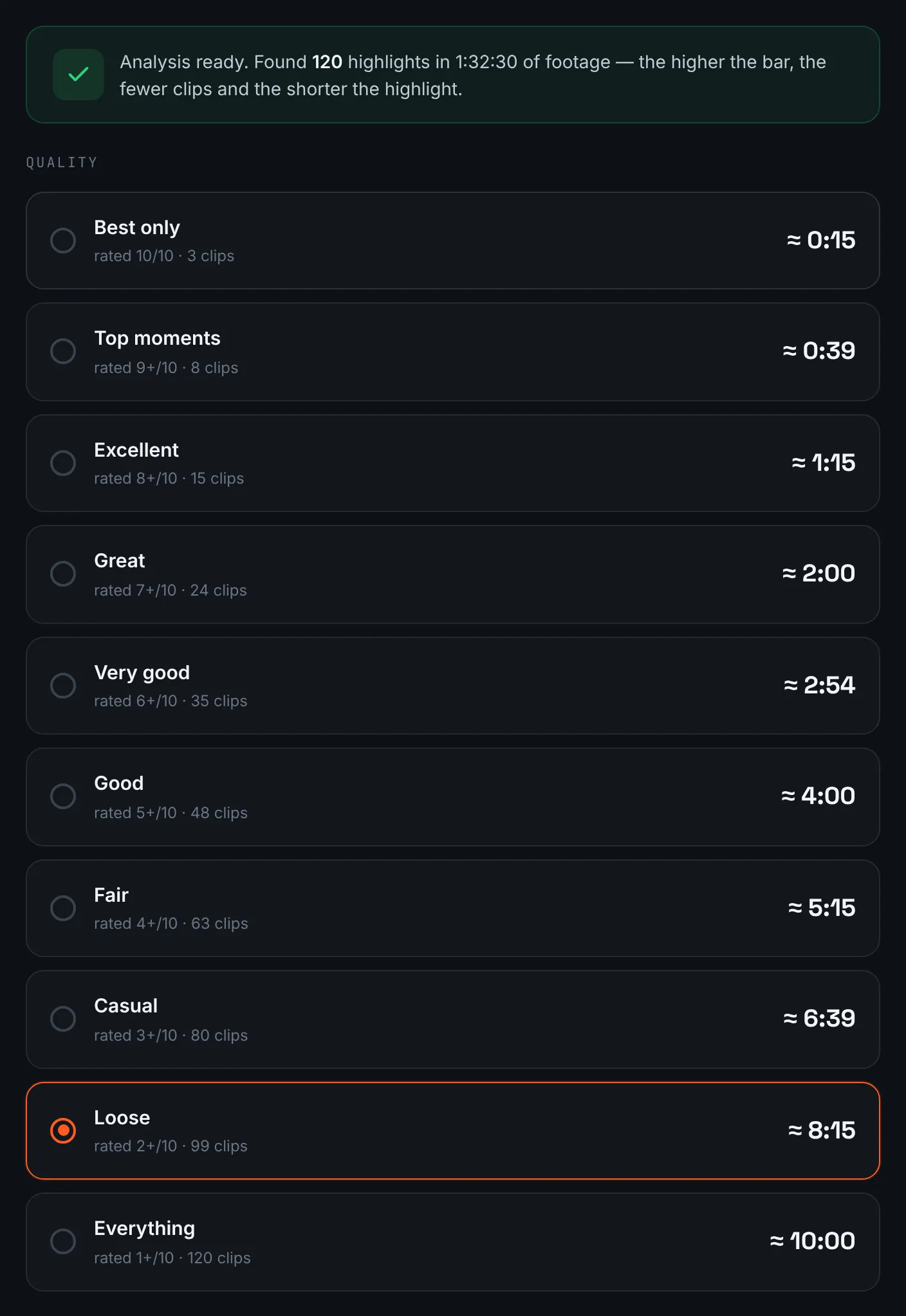
Quality levels and estimated lengths for the uploaded movies. -
Download the result
From the result page take the 4K MP4 for editing later and the 1080p MP4 for sharing; nothing is removed for 14 days.
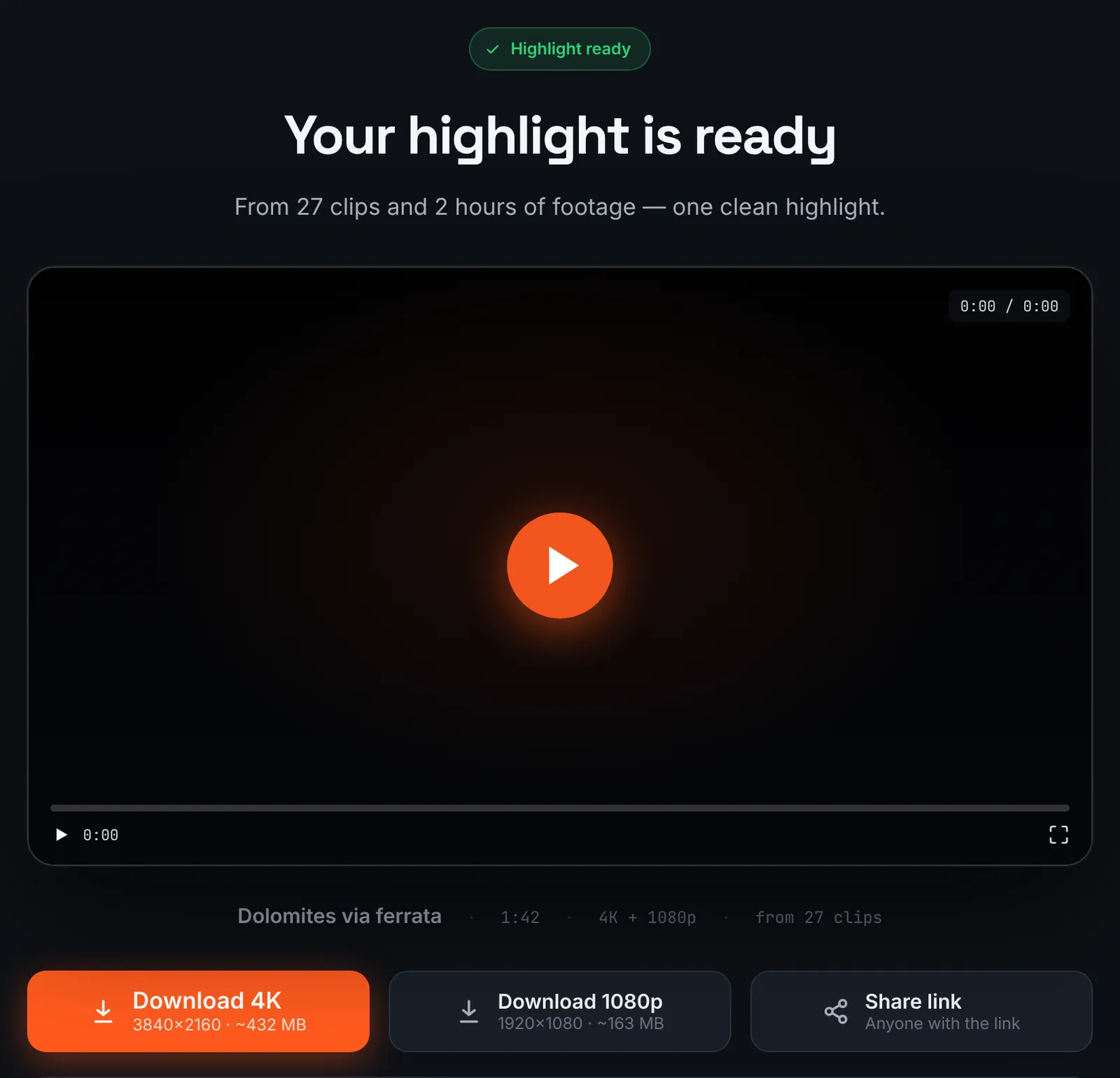
The Sony highlight, ready for download.
Common mistakes and how to fix them
- The upload contains only small low-quality files
- They came from the SUB proxy folder. Upload the movies from CLIP instead.
- Footage looks flat and grey
- S-Log3 is a log profile meant for grading. Grade those clips or use S-Cinetone or a standard profile for footage you will not grade.
- A long take ends early
- On an SDHC card it was split into 4 GB parts. Check for the next C-number and upload it too.
- Shaky helmet footage from a ZV camera
- Switch movie SteadyShot to Active, the electronic mode Sony offers alongside Standard, before filming anything that moves.
Doing it by hand vs with RawClip
Sony offers Catalyst Browse and Imaging Edge for handling files, but cutting a highlight is still either a timeline job or an automatic one.
| Aspect | By hand | With RawClip |
|---|---|---|
| Handling XAVC S and HS | Supported by most editors; HEVC needs a capable computer | Read on the server, whatever your computer supports |
| Split 4 GB files | Lined up on the timeline by hand | Ordered automatically by recording time |
| Selecting moments | Your own review of every take | Analysis of every take |
| Grading S-Log3 | Full control | Grade before uploading |
| Price | Your time and editor licence | $9.90 for up to 1 hour, $19.90 for up to 6 hours, $39.90 for up to 12 hours, $79.90 for up to 24 hours |
A carefully graded piece needs a desktop editor. A highlight of a day out with a ZV or an Action Cam is quicker as an automatic edit.
Try it with your own footage
Orders under 1h of footage are processed first and paid later: you watch a watermarked 480p preview and pay only to unlock the 4K and 1080p files. Pricing is per order and depends only on how much footage you send: $9.90 for up to 1 hour, $19.90 for up to 6 hours, $39.90 for up to 12 hours, $79.90 for up to 24 hours.