How to make a highlight from Insta360 360 footage
Published · Updated
Short answer
Insta360 X-series cameras save 360 video as .insv files, which editors and RawClip cannot open directly. Reframe each clip to a flat view and export it as MP4 in Insta360 Studio or the Insta360 app, then upload the exported files to RawClip and pick one of the lengths it offers after the analysis.
What you need
- An Insta360 X3, X4, X5 or X6 and the clips from its card
- Insta360 Studio on a computer, or the Insta360 app on a phone
- Disk space for the exported MP4 files
- If you keep reframed exports online, their Google Drive folder
Step by step
-
Copy each clip with all of its files
Connect the camera over USB-C and choose file transfer, or use a card reader, then copy from DCIM. Insta360 asks you to copy every file generated for a clip: on the X4, X5 and X6 that is one .insv holding both lenses plus an .lrv proxy, while the X3 wrote two .insv files per clip. Do not rename them.
Importing only the .lrv into Studio gives a "no master file" error, which is the usual sign that the real .insv was left behind.
-
Reframe to a flat view in Insta360 Studio
A 360 file is a sphere, and a highlight needs a rectangle. In Insta360 Studio set the view direction with keyframes so the frame follows the action; Insta360 notes that keyframes apply only when you export as a flat Video, not as a 360 file. Horizon lock is on by default in 360 mode and FlowState stabilisation is applied at this stage too.
Choose one frame shape for every clip of the trip: 16:9 for a wide highlight or 9:16 for a vertical one.
-
Export MP4 files you can upload
In Export Settings pick MP4 with H.264 or H.265 and a resolution such as 3840x2160. ProRes is available too, but the files are far larger and gain nothing for a highlight. Save the settings as a preset and export every reframed clip into one folder.
Single-lens recordings from the X5 are already MP4 and can be uploaded without this step.
-
Upload the exports from your computer
Create a highlight in RawClip and drag the folder of exports onto the upload area. Upload all of them, including clips you are unsure about; the analysis scores the moments and the weaker exports simply do not make the cut.
Footage from a second camera, a GoPro on the bike or a drone overhead, can go into the same order as the Insta360 exports.
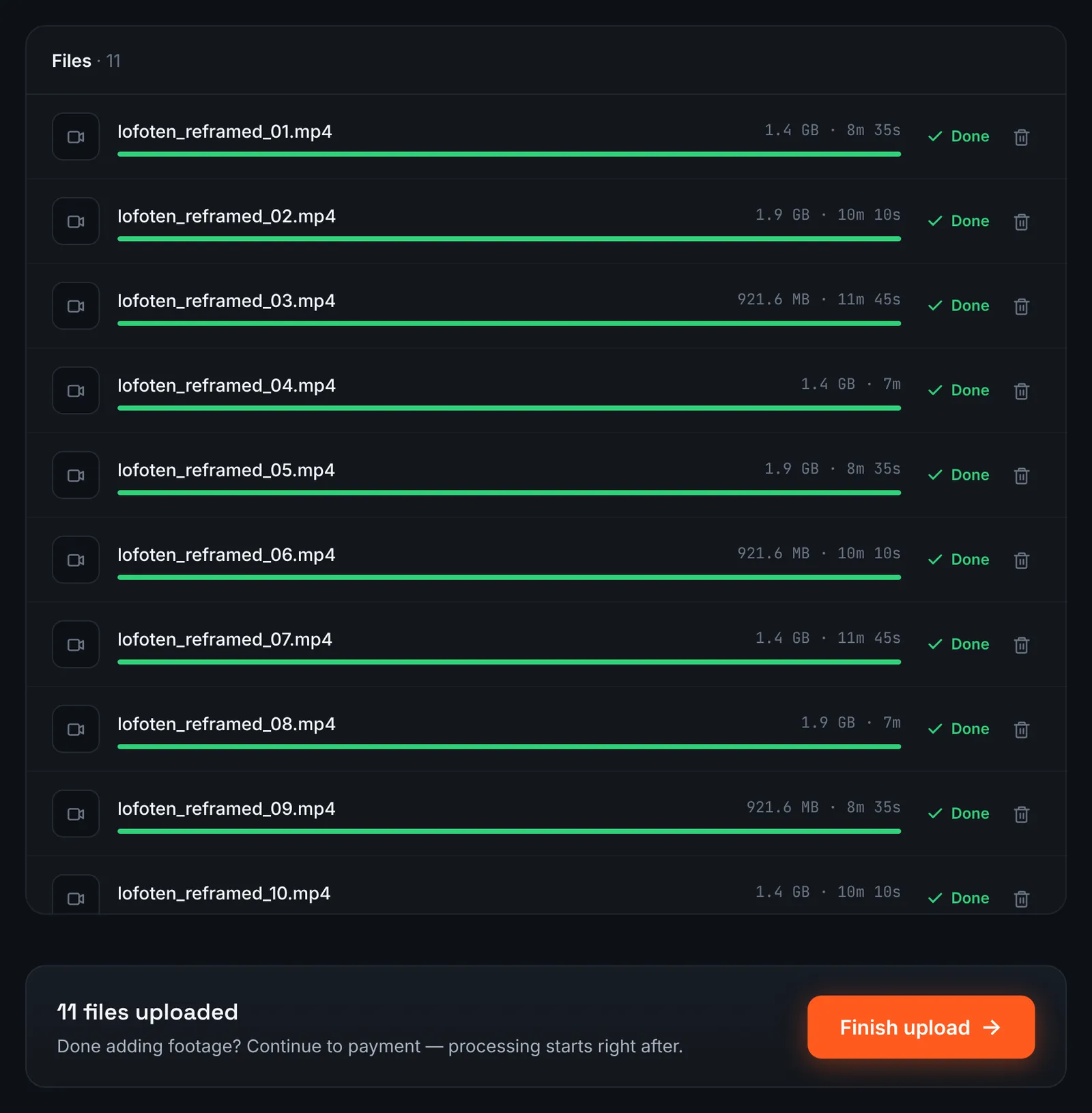
Reframed Insta360 exports uploaded as ordinary MP4 files. -
Or link the export folder in Google Drive
If Studio exported straight into a synced Google Drive folder, share that folder with "Anyone with the link", select Google Drive link in RawClip and paste the address.
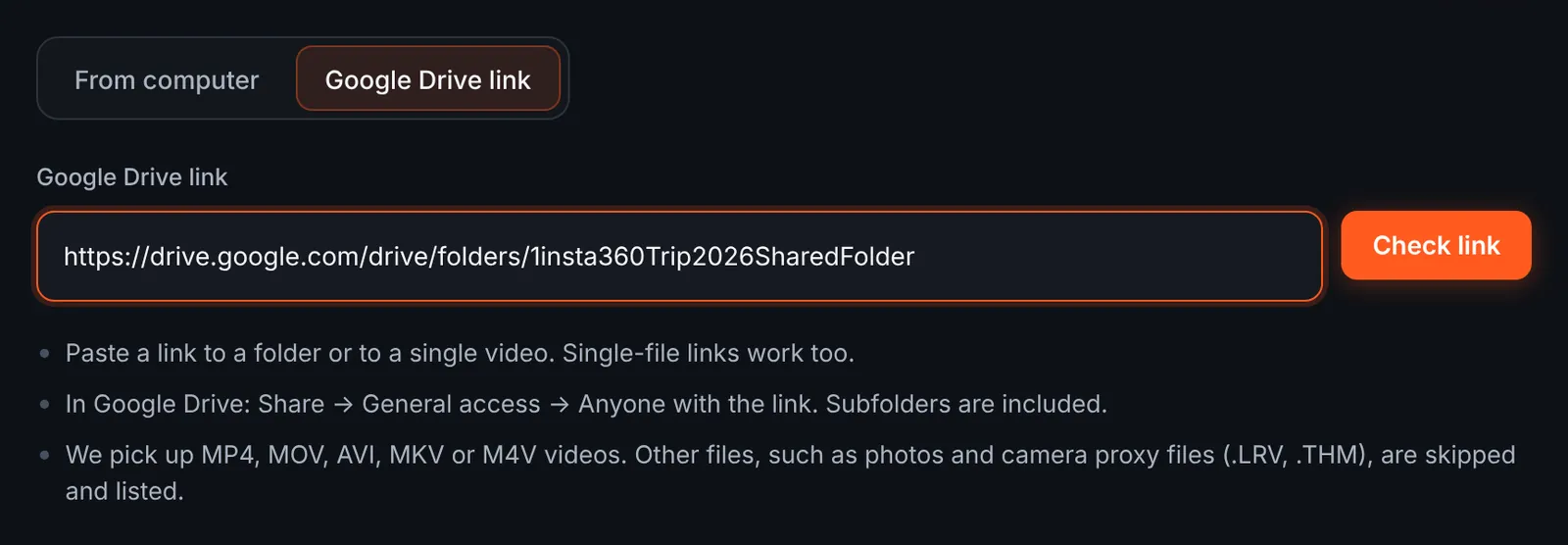
Pasting the Drive folder that holds the exports. -
Check that only MP4 exports are picked up
The link check lists the videos it can use. Raw .insv and .lrv files in the same folder are skipped and shown with the reason, with a reminder to export Insta360 files to MP4 first. Untick what you do not need and start the download.
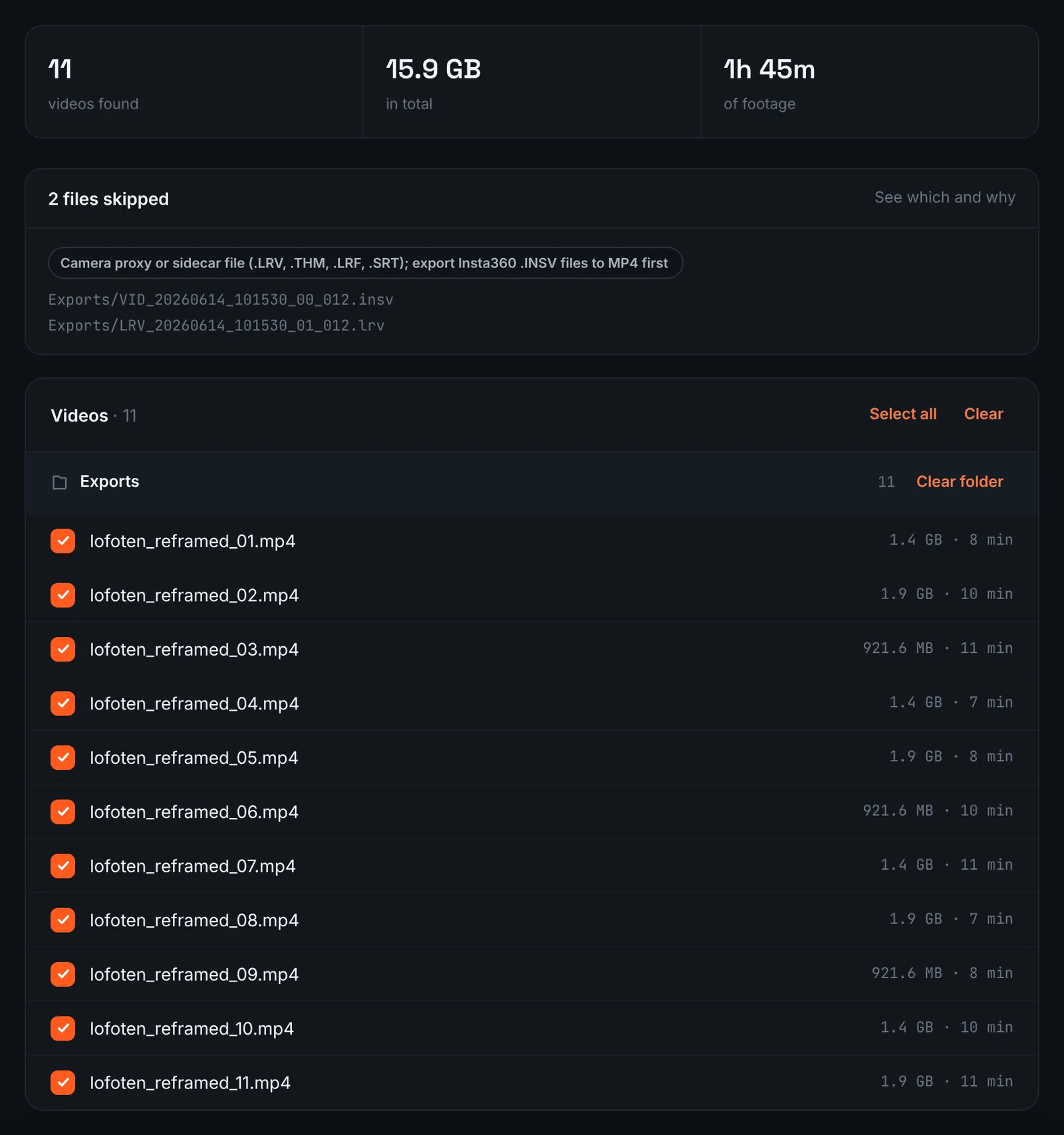
MP4 exports are used; unexported .insv files are skipped. -
Pay and wait for the analysis
Exports are priced by how long they add up to, whatever the original 360 resolution was: $9.90 for up to 1 hour, $19.90 for up to 6 hours, $39.90 for up to 12 hours, $79.90 for up to 24 hours. Orders under 1h of footage are processed first and paid later: you watch a watermarked 480p preview and pay only to unlock the 4K and 1080p files. The analysis starts after that without any input from you.
-
Choose a length that fits the exports
The choose screen lists quality levels with clip counts and estimated durations, worked out from the moments found in your exports. A big trip yields a wide spread from a short teaser to a long recap, a single afternoon a narrower one. For 3 days after the highlight is ready you can re-cut it to another length or switch the music on or off without a new upload: the first 3 re-cuts are free, each one after that is $2.90.
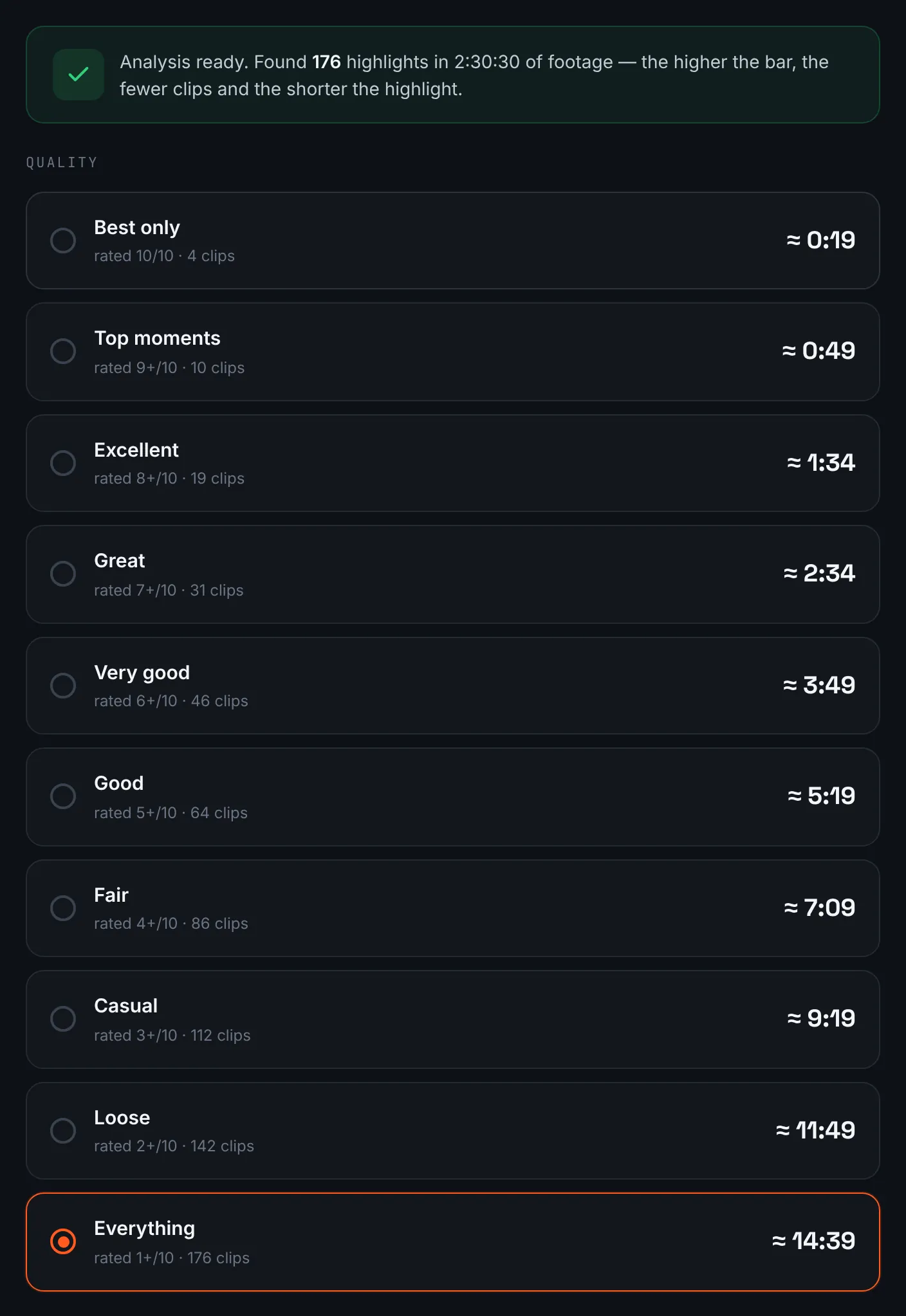
Length options built from the reframed footage. -
Download the 360 highlight
The finished video is a normal flat MP4 in 4K and 1080p, ready for any platform that does not support 360 playback. It stays downloadable for 14 days.
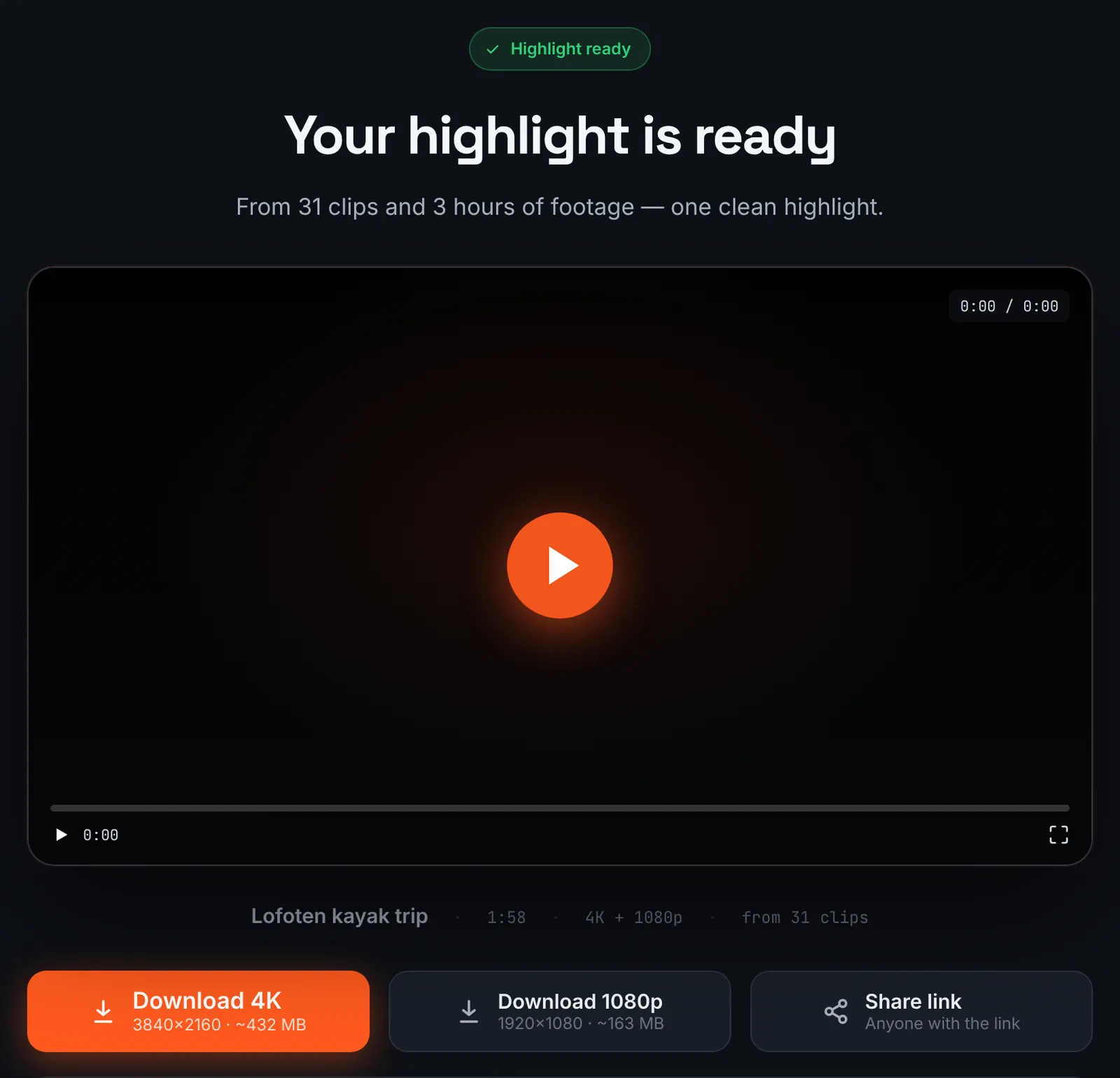
A flat highlight made from 360 footage.
Common mistakes and how to fix them
- Studio shows an error when opening a clip
- Only the proxy was copied. Copy the matching .insv file, and on an X3 both lens files, from the card.
- Exports look blurry
- A flat frame shows only part of the sphere, so a narrow field of view enlarges a small area. Widen the view or export at a lower resolution that the source can really fill.
- The upload refuses .insv files
- RawClip accepts MP4, MOV, AVI, MKV and M4V. Export the clips from Studio or the app before uploading.
- Some exports are vertical, others wide
- A highlight has one frame shape, and any wide clip makes it wide. Export every clip with the same reframing aspect ratio.
Doing it by hand vs with RawClip
Reframing is creative work only you can do. After the export, the question is who assembles the clips.
| Aspect | By hand | With RawClip |
|---|---|---|
| Reframing | Studio or the app, by hand | Same: done before the upload |
| Assembling the clips | Timeline in Studio or another editor | Automatic, from the analysis |
| Choosing the best seconds | You watch every export | Moments are ranked across all exports |
| Result | Any format your editor supports | MP4 in 4K and 1080p |
| Cost | Studio is free; your time | $9.90 for up to 1 hour, $19.90 for up to 6 hours, $39.90 for up to 12 hours, $79.90 for up to 24 hours |
If you enjoy keyframing and want a tightly directed film, finish it in Studio. If you have reframed a whole holiday and simply want the best of it in one video, let RawClip assemble the exports.
Try it with your own footage
Orders under 1h of footage are processed first and paid later: you watch a watermarked 480p preview and pay only to unlock the 4K and 1080p files. Pricing is per order and depends only on how much footage you send: $9.90 for up to 1 hour, $19.90 for up to 6 hours, $39.90 for up to 12 hours, $79.90 for up to 24 hours.