How to make a highlight from DJI Osmo Pocket footage
Published · Updated
Short answer
Copy the MP4 files from the Osmo Pocket over USB-C or from the microSD card, and decide whether you want a horizontal or a vertical result, because the Pocket records both. Upload every clip of that orientation to RawClip, wait for the analysis, then choose one of the lengths it calculates from your footage.
What you need
- A DJI Osmo Pocket 3, Pocket 4 or Pocket 4P and its recordings
- A USB-C cable or a microSD reader (the Pocket 4 models also have built-in storage)
- A web browser
- Optionally, the clips in a shared Google Drive folder
Step by step
-
Get the recordings onto the computer
DJI lists three ways out of the Pocket: DJI Mimo on a phone, the microSD card in a computer, or a USB-C connection with file transfer turned on. For a trip worth of clips, use USB-C or the card. The Pocket 4 and 4P keep footage in internal storage as well, which only the cable route reaches.
Copy the MP4 files. The small LRF files beside them are previews for playback and the Mimo trimming feature, not footage.
-
Separate vertical clips from horizontal ones
Rotating the Pocket switches between landscape and portrait, and DJI locks the orientation once recording starts. A travel day often ends with both kinds. One highlight has one frame shape: if even a single clip is horizontal, the result is horizontal and the vertical clips appear with bars on both sides.
For a Reels or Shorts edit, upload only the portrait clips. For a YouTube recap, upload only the landscape ones.
-
Expect a few split recordings
DJI says the Pocket 3 splits a recording automatically, without losing quality, as it approaches 16 GB. A long walking shot can therefore arrive as two files. Keep both, since they are ordered by recording time and the seam does not matter for the edit.
-
Upload the Pocket clips from your computer
Make a new highlight and drop the chosen MP4 files into it. Talking-to-camera pieces, food close-ups and ActiveTrack shots of a friend can all go in; you do not need to pre-select anything, because the analysis decides what earns a place.
If someone else filmed on a phone or an action camera on the same trip, add those clips to the same order and they are mixed into one edit.
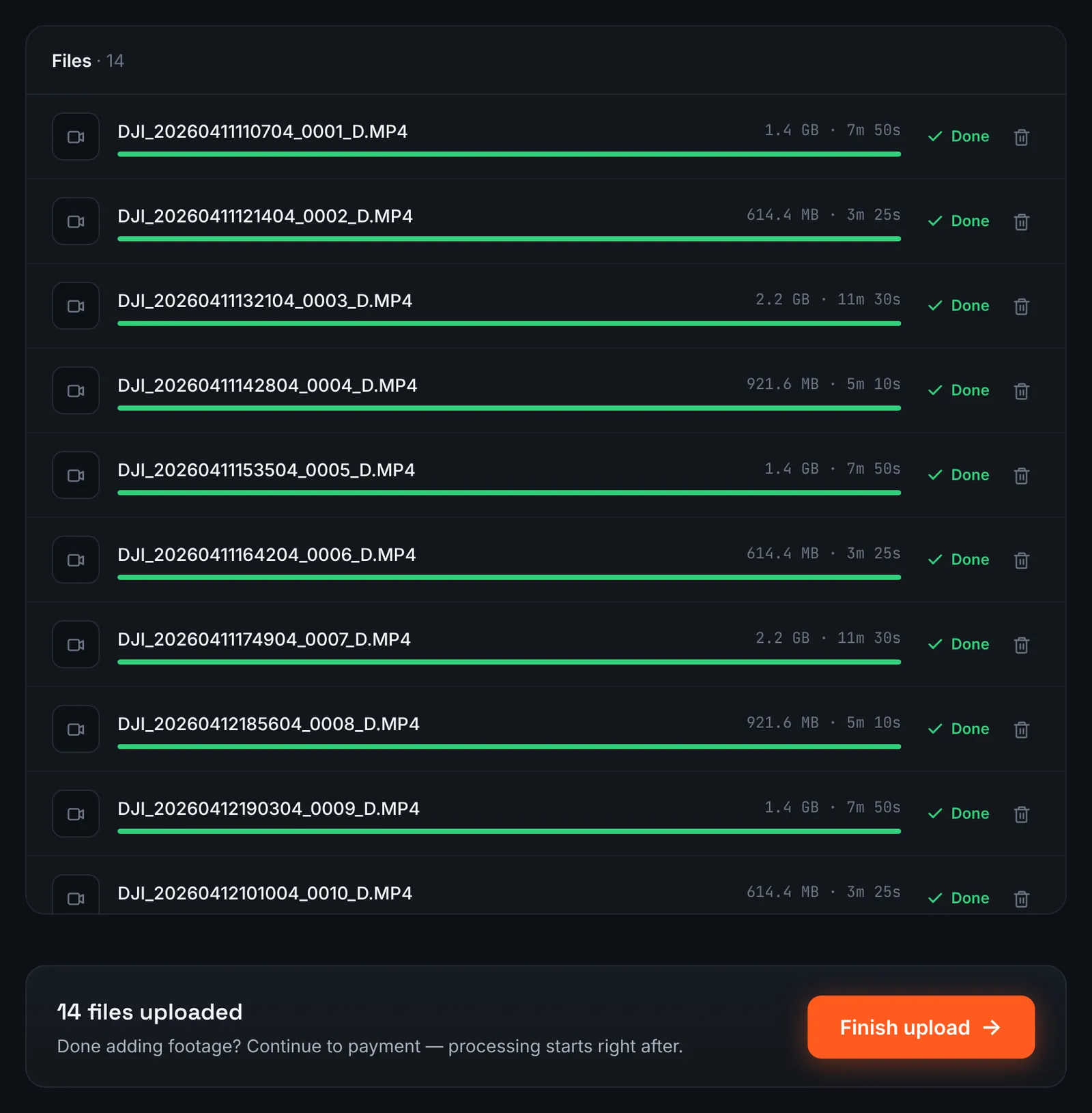
Osmo Pocket travel clips uploaded from the computer. -
Or send the folder as a Google Drive link
Pocket owners who back up to Google Drive while travelling can skip the upload: pick Google Drive link, paste the shared folder and RawClip fetches the videos itself. Set the folder to "Anyone with the link" in Drive before pasting it.
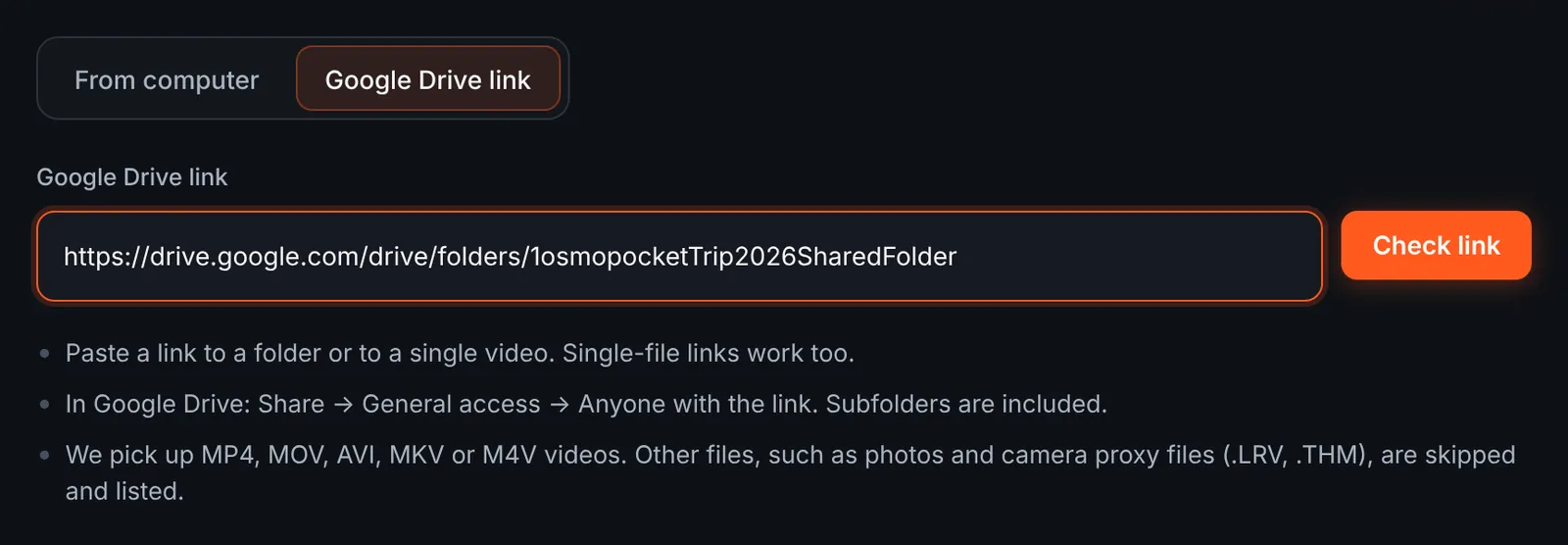
A shared Drive folder as the source. -
Review the Drive folder before the download
The checked link shows each video, its folder and its length. This is the moment to untick the clips of the wrong orientation. LRF previews in the folder are skipped and listed separately, and only the ticked videos are downloaded.
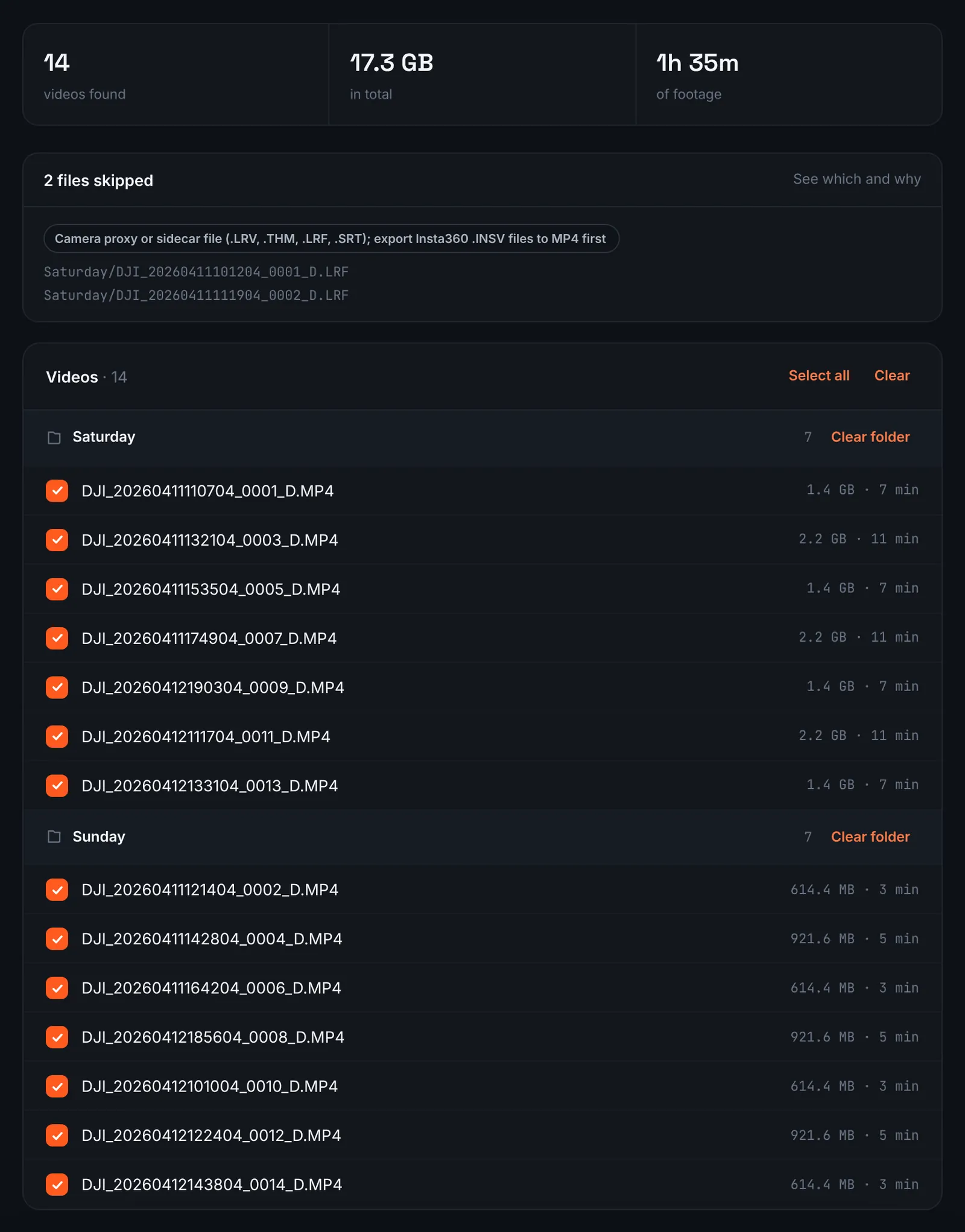
Osmo Pocket videos from Drive, grouped by folder. -
Pay and let the footage be analysed
A travel day of short Pocket clips is billed by its combined running time, not by the number of files, at these rates: $9.90 for up to 1 hour, $19.90 for up to 6 hours, $39.90 for up to 12 hours, $79.90 for up to 24 hours. Orders under 1h of footage are processed first and paid later: you watch a watermarked 480p preview and pay only to unlock the 4K and 1080p files. From there the analysis needs nothing from you, and an email tells you when the next step is ready.
-
Select a length from the options
Calm travel footage may hold fewer obvious peaks than an action session of the same length, and the choose screen reflects that: it lists only the lengths the found moments can fill, each with its clip count. Pick the one that suits where the video will be posted.
For 3 days after the highlight is ready you can re-cut it to another length or switch the music on or off without a new upload: the first 3 re-cuts are free, each one after that is $2.90.
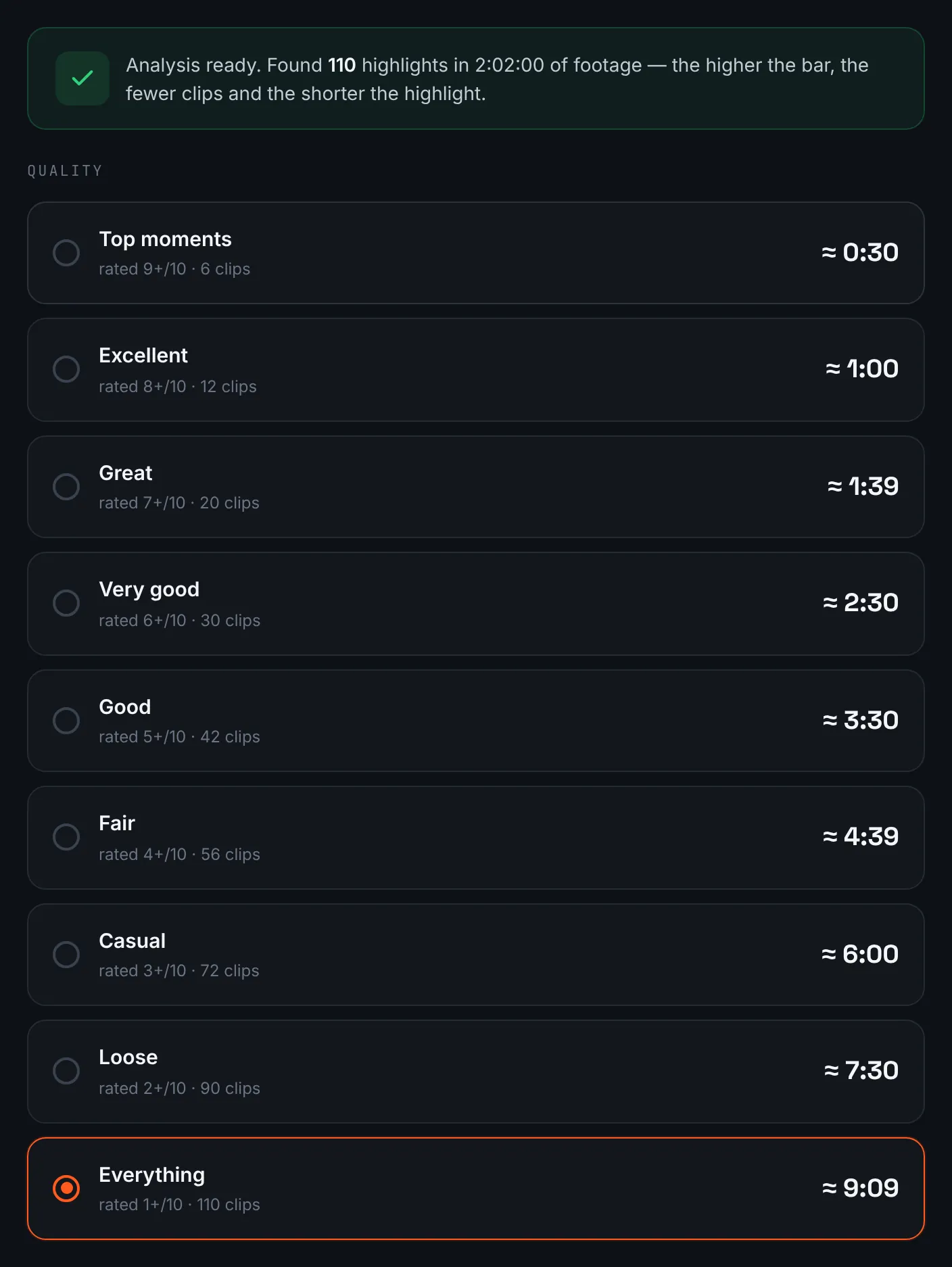
The available lengths depend on how many good moments the footage holds. -
Download and post it
Keep the 4K version as your travel memory and post the 1080p one, or simply send the share link; the page stays live for 14 days.
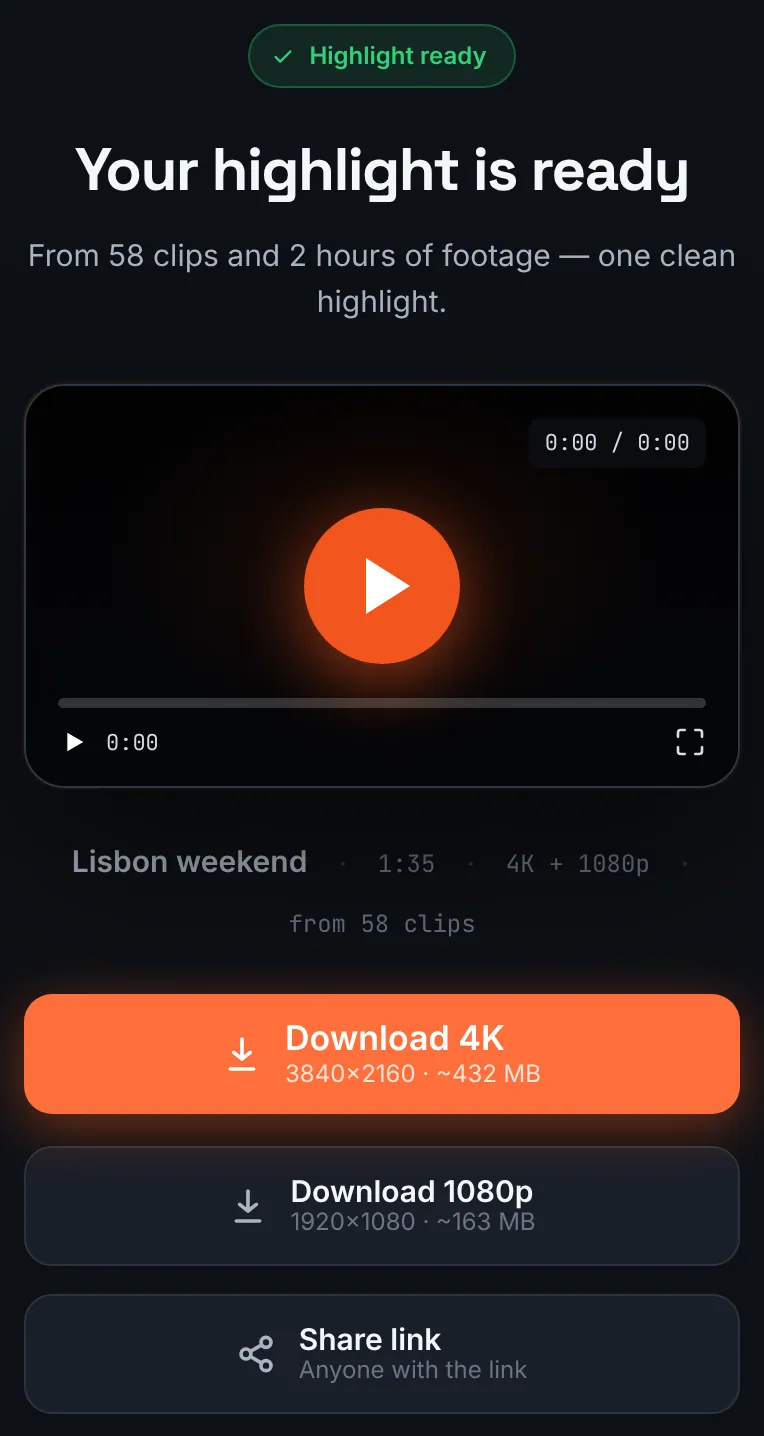
The result page on a phone.
Common mistakes and how to fix them
- A vertical edit came out horizontal
- At least one landscape clip was in the order. Remove it and upload portrait clips only.
- The newest clips are not on the card
- On a Pocket 4 they may be in internal storage. Copy them over USB-C with file transfer enabled.
- Grey, washed-out colour
- Those clips were recorded in D-Log M or another log mode. Grade them first, or film in the normal profile next time.
- Voice clips lose their words
- A short highlight rarely has room for a full sentence to camera. Keep narration-heavy vlogs for a manual vlog edit.
Doing it by hand vs with RawClip
Pocket footage is usually a mix of talking, walking and scenery. That changes what each editing route does well.
| Aspect | By hand | With RawClip |
|---|---|---|
| Talking to camera | You keep every sentence you need | Not the focus: the cut is built from visual moments |
| Scenery and movement | You choose the shots one by one | The strongest visual moments are picked for you |
| Vertical and horizontal | Separate projects in your editor | One orientation per order |
| Effort | An evening per trip at least | Upload, choose a length, download |
| Price | Your time and any editor licence | $9.90 for up to 1 hour, $19.90 for up to 6 hours, $39.90 for up to 12 hours, $79.90 for up to 24 hours |
A story told to camera needs a hand edit. A montage of where you went and what you saw is a good fit for an automatic highlight.
Try it with your own footage
Orders under 1h of footage are processed first and paid later: you watch a watermarked 480p preview and pay only to unlock the 4K and 1080p files. Pricing is per order and depends only on how much footage you send: $9.90 for up to 1 hour, $19.90 for up to 6 hours, $39.90 for up to 12 hours, $79.90 for up to 24 hours.