How to make a highlight video from DJI Mini drone footage
Published · Updated
Short answer
Copy the videos from the DJI Mini to a computer with a USB cable or a card reader, check the internal storage on the Mini 5 Pro, and keep portrait and landscape clips in separate orders. Upload the flights to RawClip as they are, and after the analysis choose a highlight length from the options it calculates.
What you need
- A DJI Mini 4 Pro, Mini 5 Pro or similar Mini drone with its footage
- A way to get the files off the drone: its USB port or the microSD card in a reader
- A computer with a browser
- A Google Drive folder, if your flights are already backed up there
Step by step
-
Pull the files off the drone
DJI documents three routes: QuickTransfer to a phone through DJI Fly, a USB cable to a computer, or the microSD card in a reader. The Mini 5 Pro also has internal storage, so plug the aircraft in over USB if some flights were not saved to the card.
QuickTransfer is handy for one clip, but a whole day of flights goes to the computer far more comfortably by cable or card.
-
Sort portrait flights from landscape ones
The Mini line rotates its camera for true vertical shooting, switched with one tap in DJI Fly. That is great for Reels, but one highlight has one shape. Put portrait clips in one order and landscape clips in another; a single landscape clip turns a whole highlight wide.
-
Leave the automated shots in
QuickShots such as Dronie, Rocket, Circle and Helix, MasterShots and Hyperlapse clips all come out as ordinary video files. Include them: a smooth circle around a viewpoint is often one of the strongest moments of the day.
Take-off and landing clips can go in too. The analysis decides which seconds of each flight are worth showing.
-
Upload the flights from your computer
Create a highlight in RawClip and drop the video files from all flights into the upload area. Phone or action-camera clips from the ground can join the same order, which gives the aerials scale and a sense of place.
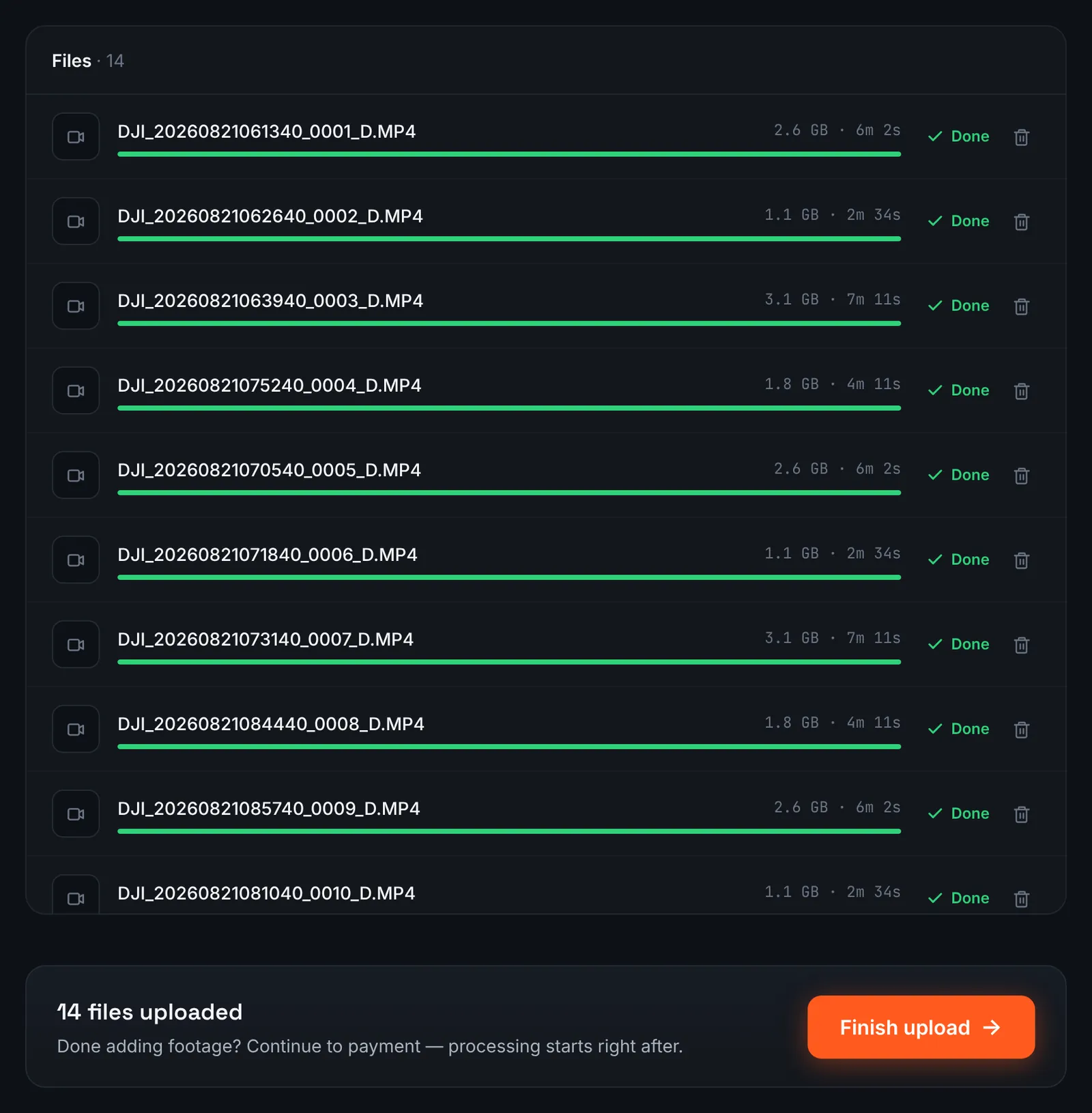
A day of DJI Mini flights uploaded from the computer. -
Or share the flights through Google Drive
If DJI Fly exports or a laptop backup already put the flights into Google Drive, choose Google Drive link and paste the folder. The folder must be shared with "Anyone with the link".
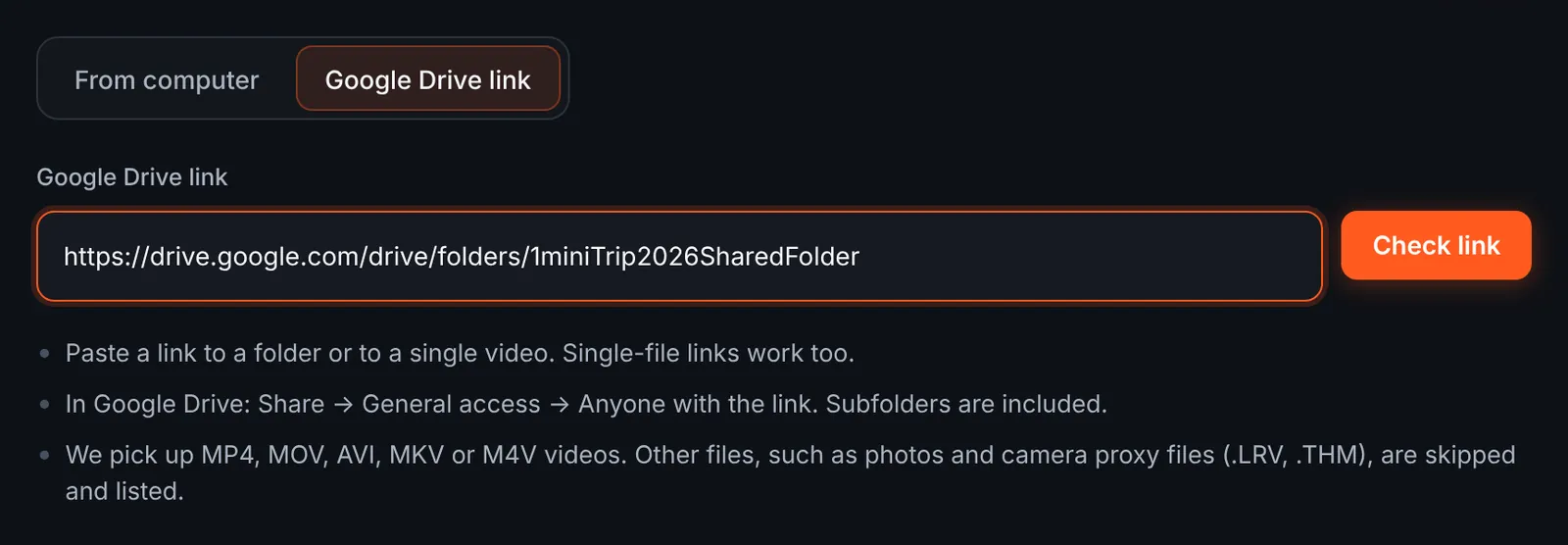
Flights sent as a Drive folder link. -
Tick the flights to download
The review screen lists every video in the folder with its length, grouped by subfolder, and skips photos and anything else that is not a supported video, with a short explanation. Untick test hovers you do not want and start the download.
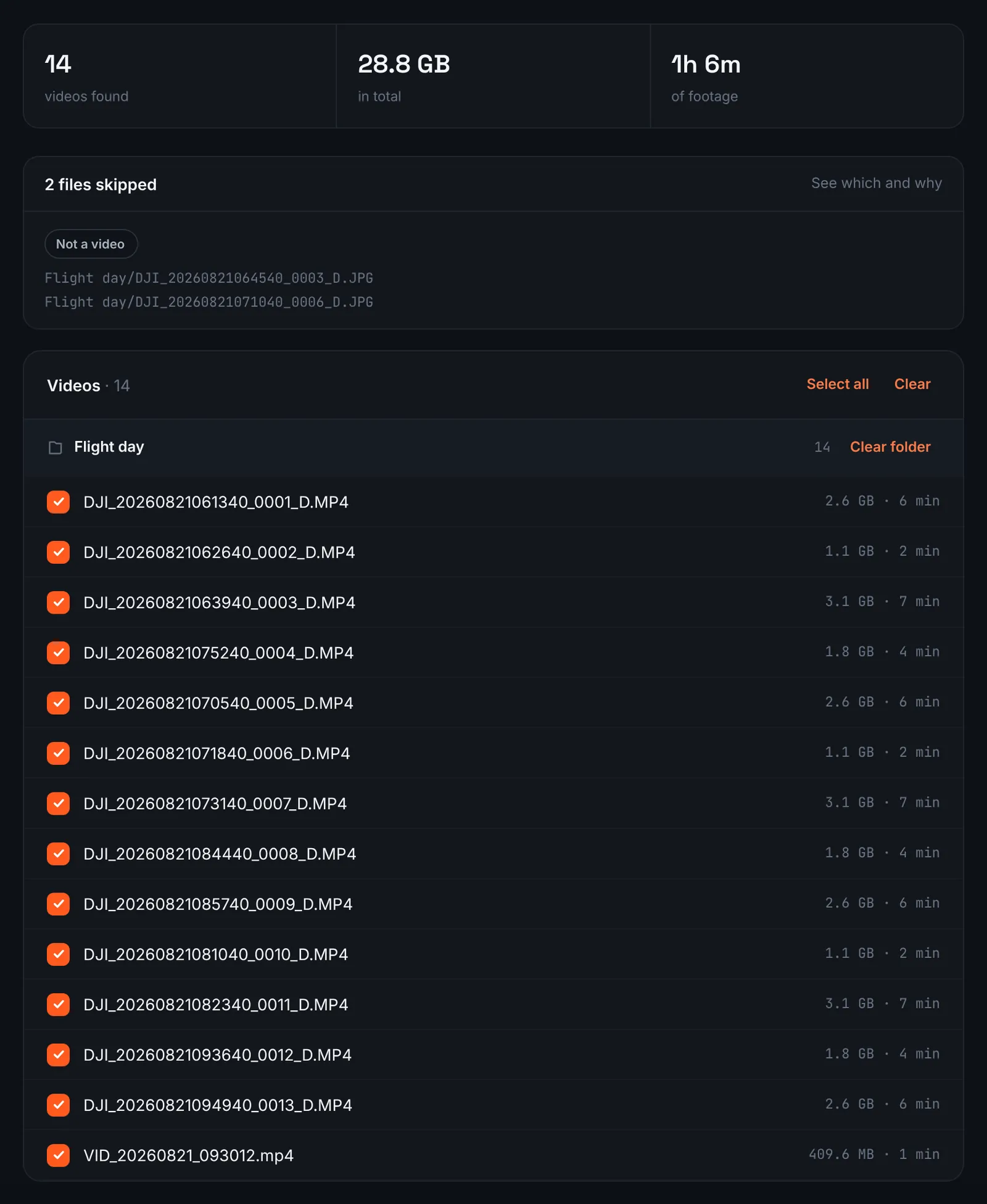
DJI Mini flights found in the Drive folder. -
Pay for the flight time
Short flights add up quickly, and their combined length is what you pay for ($9.90 for up to 1 hour, $19.90 for up to 6 hours, $39.90 for up to 12 hours, $79.90 for up to 24 hours). Orders under 1h of footage are processed first and paid later: you watch a watermarked 480p preview and pay only to unlock the 4K and 1080p files. Analysis of the aerials follows straight after the payment.
-
Choose a length from the list
Drone footage repeats itself quickly, so the shorter quality levels usually make the best aerial highlights. The choose screen shows every level with its clip count and estimated running time, calculated from the flights you sent.
For 3 days after the highlight is ready you can re-cut it to another length or switch the music on or off without a new upload: the first 3 re-cuts are free, each one after that is $2.90.
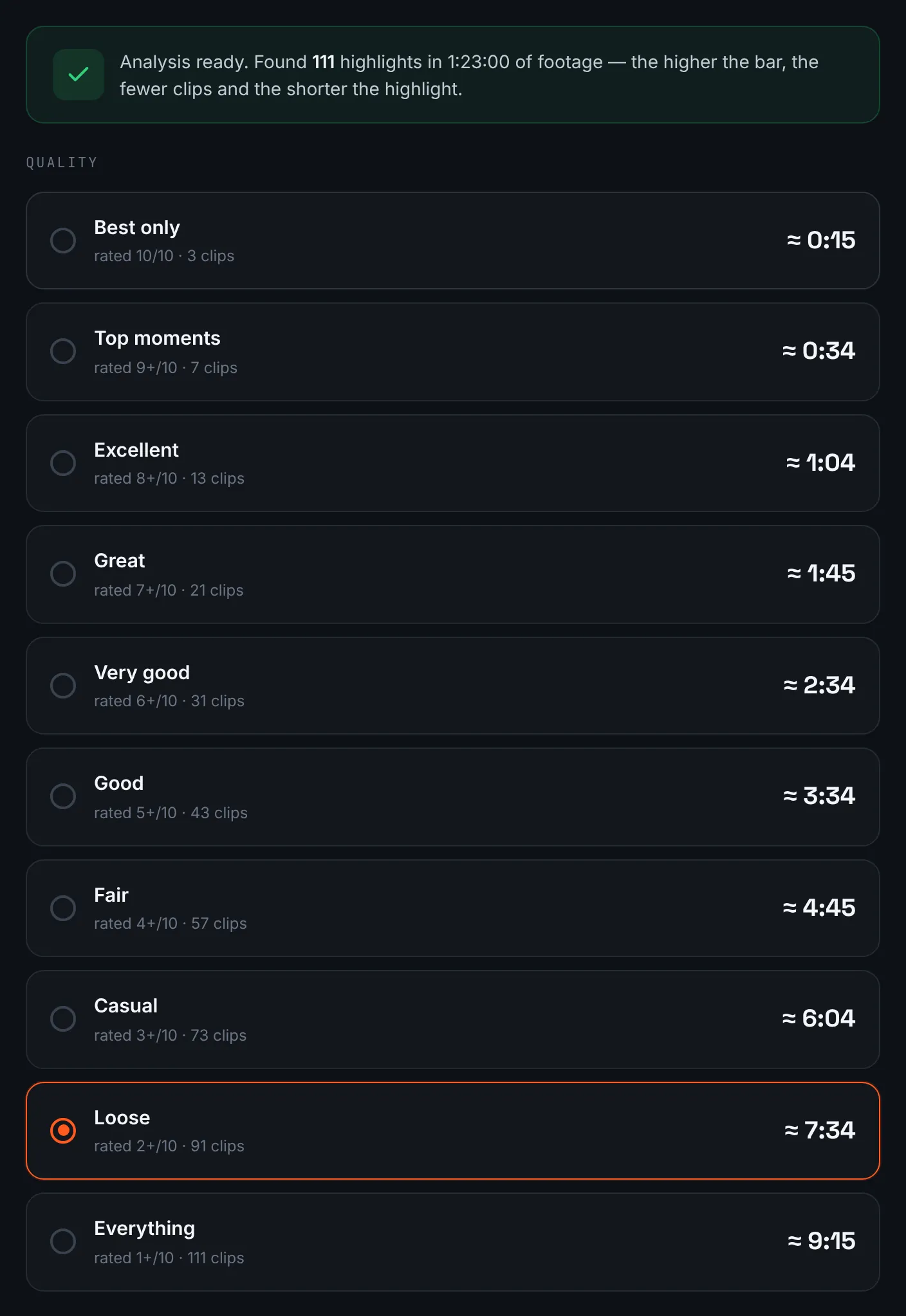
Shorter levels keep only the strongest aerial shots. -
Download the aerial highlight
The finished aerial cut plays right on the result page, next to its 4K and 1080p downloads, for 14 days.
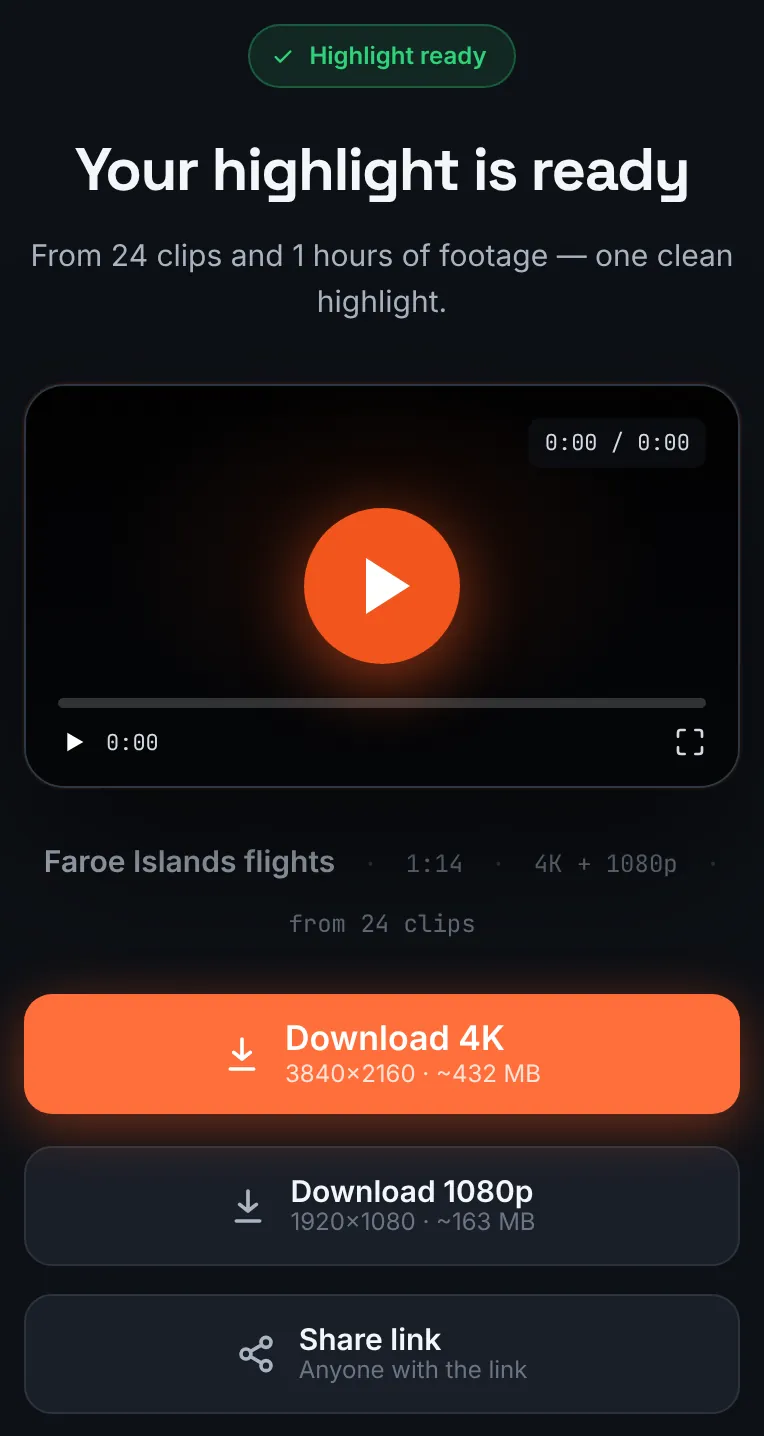
The aerial highlight on a phone.
Common mistakes and how to fix them
- A vertical edit turned out wide
- A landscape flight slipped into the order. Upload portrait and landscape flights as separate highlights.
- Choppy, stepping motion
- In bright light the shutter gets very fast. An ND filter brings it closer to double the frame rate and smooths movement.
- Colours look washed out
- D-Log M on the Mini 4 Pro and 5 Pro is a flat profile for grading. Grade those flights first or record in Normal colour.
- Some flights are missing
- They were saved to internal storage on the Mini 5 Pro. Connect the drone over USB to copy them.
Doing it by hand vs with RawClip
DJI Fly and LightCut make quick edits on a phone; RawClip edits the whole set of flights at once.
| Aspect | By hand | With RawClip |
|---|---|---|
| Where the flights come from | Downloaded to the phone one by one | All files of the day uploaded together |
| Automated shots | You decide which QuickShots to use | Ranked with every other clip |
| Portrait and landscape | Separate projects | One orientation per order |
| Output | Set by the app and the phone | 4K and 1080p files |
| Cost | Free apps and your time | $9.90 for up to 1 hour, $19.90 for up to 6 hours, $39.90 for up to 12 hours, $79.90 for up to 24 hours |
For a quick post straight after landing, the phone apps are fine. For a trip with dozens of flights, an automatic highlight gets through the footage that a phone would struggle to hold.
Try it with your own footage
Orders under 1h of footage are processed first and paid later: you watch a watermarked 480p preview and pay only to unlock the 4K and 1080p files. Pricing is per order and depends only on how much footage you send: $9.90 for up to 1 hour, $19.90 for up to 6 hours, $39.90 for up to 12 hours, $79.90 for up to 24 hours.