How to edit DJI Osmo Action footage into a highlight
Published · Updated
Short answer
Move the MP4 files from the Osmo Action to a computer with a card reader or the USB-C cable, leaving the .LRF preview files behind, and upload all of them to RawClip as they came off the camera. After the analysis you choose from several highlight lengths worked out from your clips, and the video is rendered in 4K and 1080p.
What you need
- A DJI Osmo Action 4, 5 Pro or 6 with its footage, on the microSD card or in the built-in storage
- The USB-C cable or a microSD card reader
- A browser on a computer
- A Google Drive folder with the clips, if you prefer to send a link
Step by step
-
Connect the camera or read the card
The Osmo Action 5 Pro and 6 also record to internal storage, so a card reader alone may not show everything. Connect the camera with USB-C, set the USB mode on the camera to file transfer (OTG Connection on the 5 Pro, USB Mode on the 6) and copy the videos. With an Action 4 or a card-only workflow, a microSD reader is enough.
DJI also offers DJI Mimo for moving clips to a phone, but for a whole day of riding the computer route is simpler.
-
Leave the LRF files where they are
For every clip the camera writes an MP4 and a small .LRF file. DJI uses the LRF as a low-resolution preview for playback and for the Mimo Trim Download feature; deleting it only stops in-camera playback of that clip. Copy the MP4 files and ignore the LRF ones.
If you filmed in D-Log M, know that DJI describes it as a flat, low-contrast profile rather than a finished look. Those clips appear grey unless they are graded before the upload.
-
Upload the clips from your computer
Start a highlight in RawClip and drag in every MP4 from the day, the dull ones included. Long waits on the start line, lift rides and walking back are all fine to send, even RockSteady clips that look dull at a glance, because the analysis is the part that sorts the good seconds from the rest.
Clips from a second camera can join the same order, so an Osmo Action on the handlebar and a GoPro on the helmet end up in one edit, ordered by recording time.
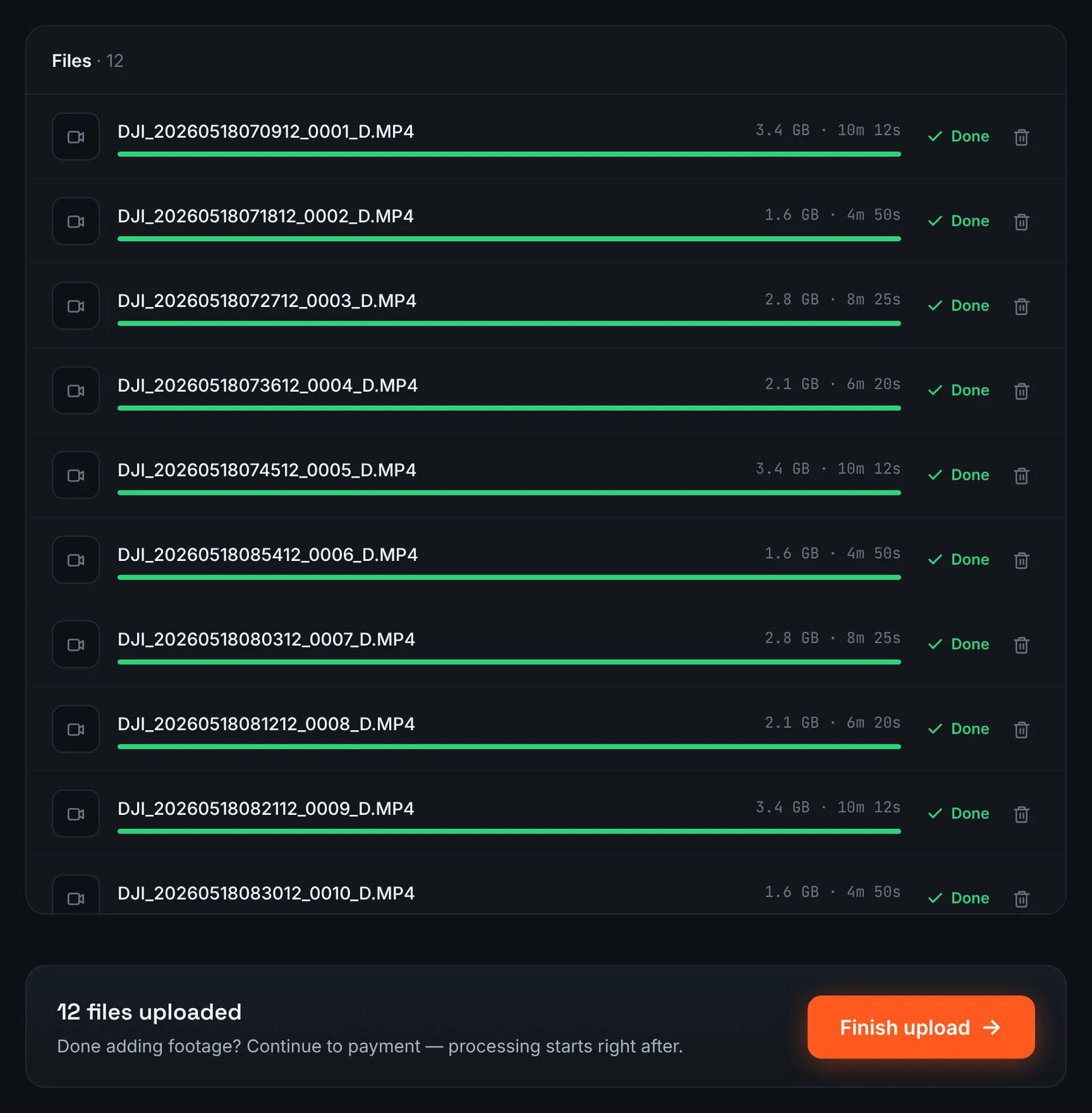
Osmo Action clips uploading; the LRF previews stay on the computer. -
Or hand over a Google Drive folder
Clips that are already backed up to Google Drive do not have to come back down to the laptop. Choose Google Drive link as the source and paste the folder address; Drive sharing must be set to "Anyone with the link" for RawClip to read it.
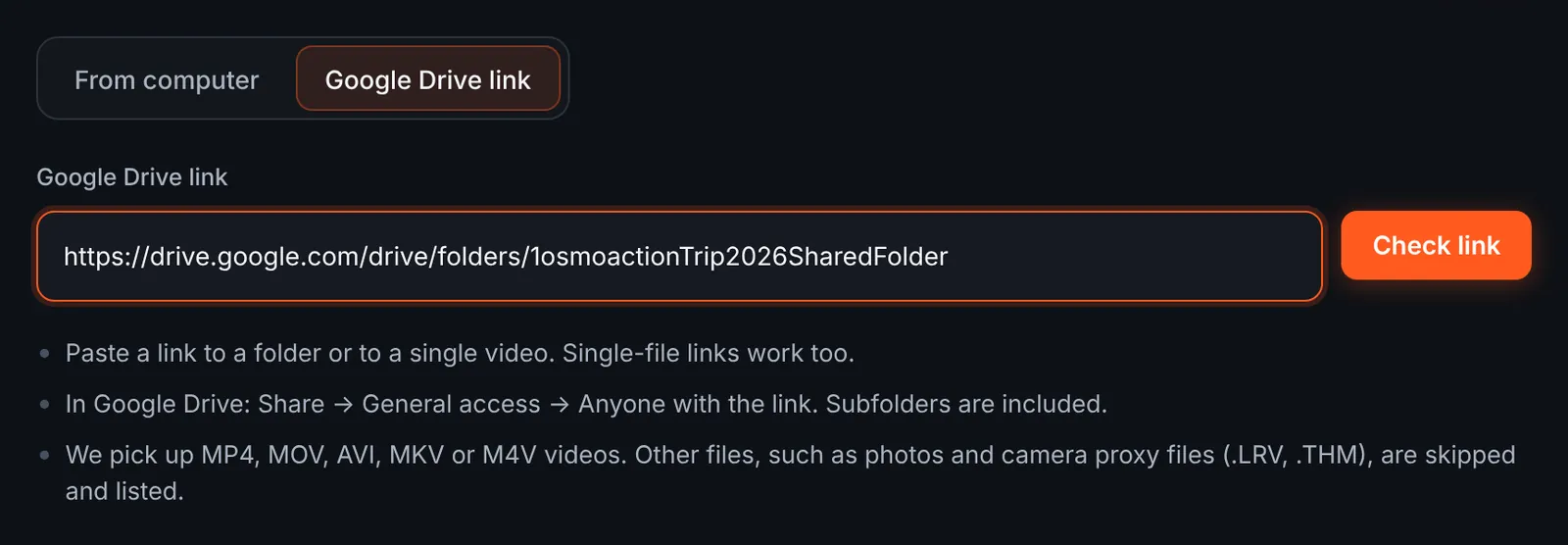
Google Drive link as the source of the order. -
Confirm which Drive videos to use
Once the link is checked, the review screen lists the MP4 files with their lengths and the running total. Any LRF files in the folder are skipped automatically and named in a separate list. Remove clips you do not want with a click, then start the download, which runs on the RawClip server.
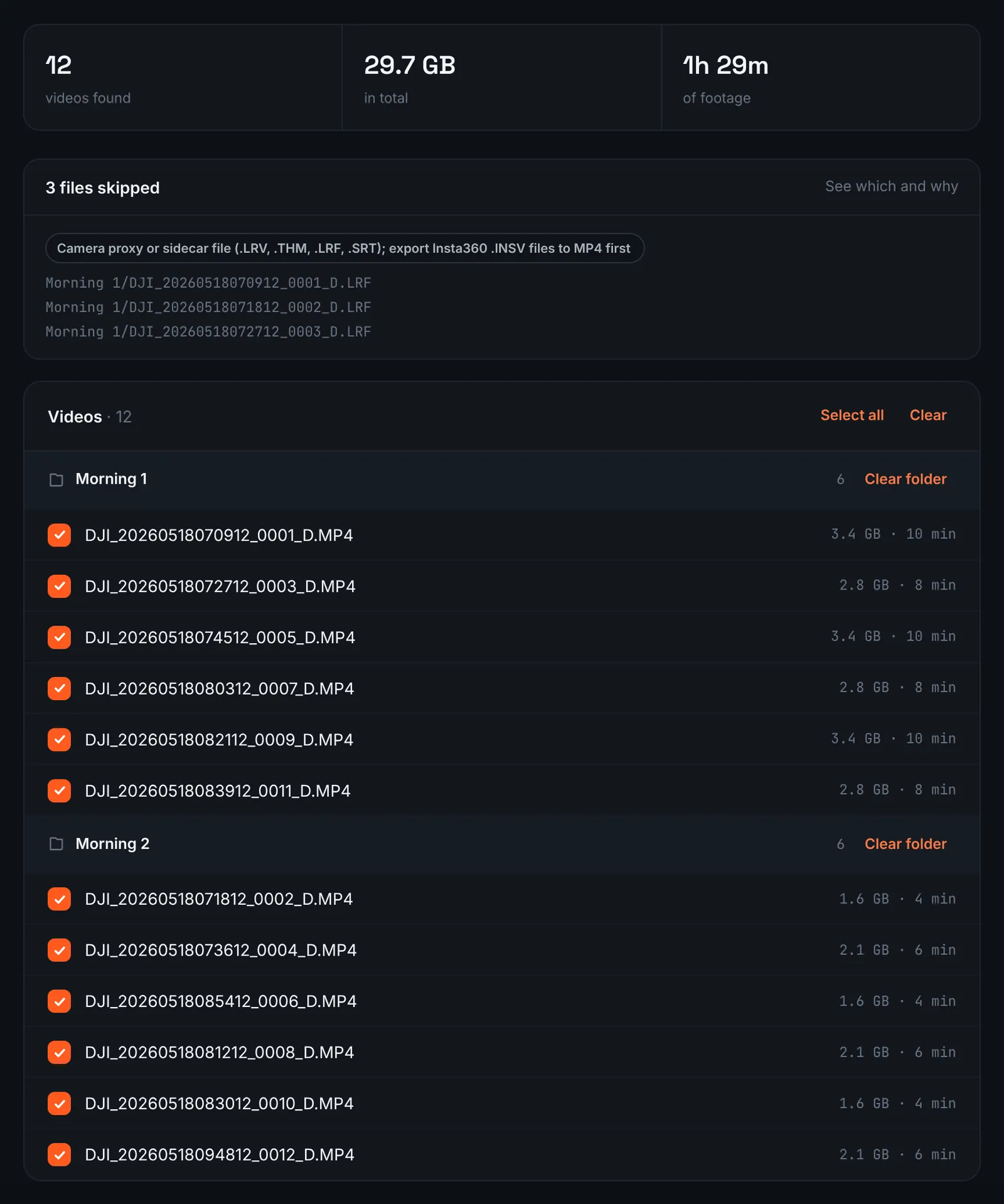
Osmo Action videos found in the Drive folder, with the LRF previews skipped. -
Pay for the footage and wait for the analysis
Finish upload confirms the files. Pricing ignores how many clips the Action wrote and looks only at how long they run together: $9.90 for up to 1 hour, $19.90 for up to 6 hours, $39.90 for up to 12 hours, $79.90 for up to 24 hours. Orders under 1h of footage are processed first and paid later: you watch a watermarked 480p preview and pay only to unlock the 4K and 1080p files. The analysis then runs on its own; an email arrives when your choice is needed, so the page can be closed.
-
Choose one of the proposed lengths
Instead of asking for a target duration up front, RawClip shows what the footage can support. Each quality level lists its clip count and an estimated running time, from a short cut of the very best moments up to a version that keeps nearly everything the analysis liked. More hours of good action mean a wider choice.
The soundtrack switch sits on the same screen. For 3 days after the highlight is ready you can re-cut it to another length or switch the music on or off without a new upload: the first 3 re-cuts are free, each one after that is $2.90.
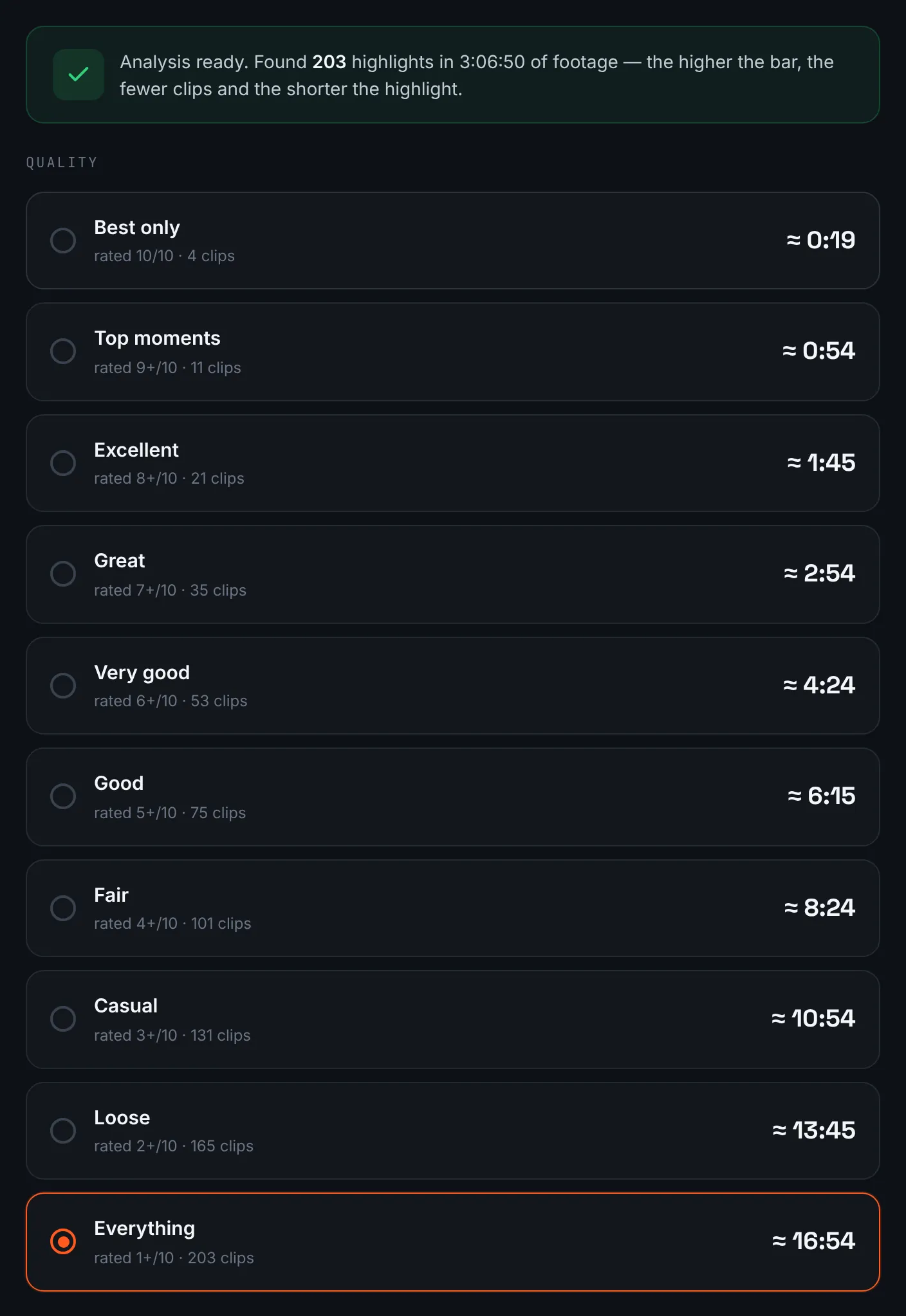
Length options calculated from the Osmo Action footage. -
Save the finished video
The result page holds a player, a 4K download, a 1080p download and a share link. Keep the 4K file as the master copy; it remains available for 14 days.
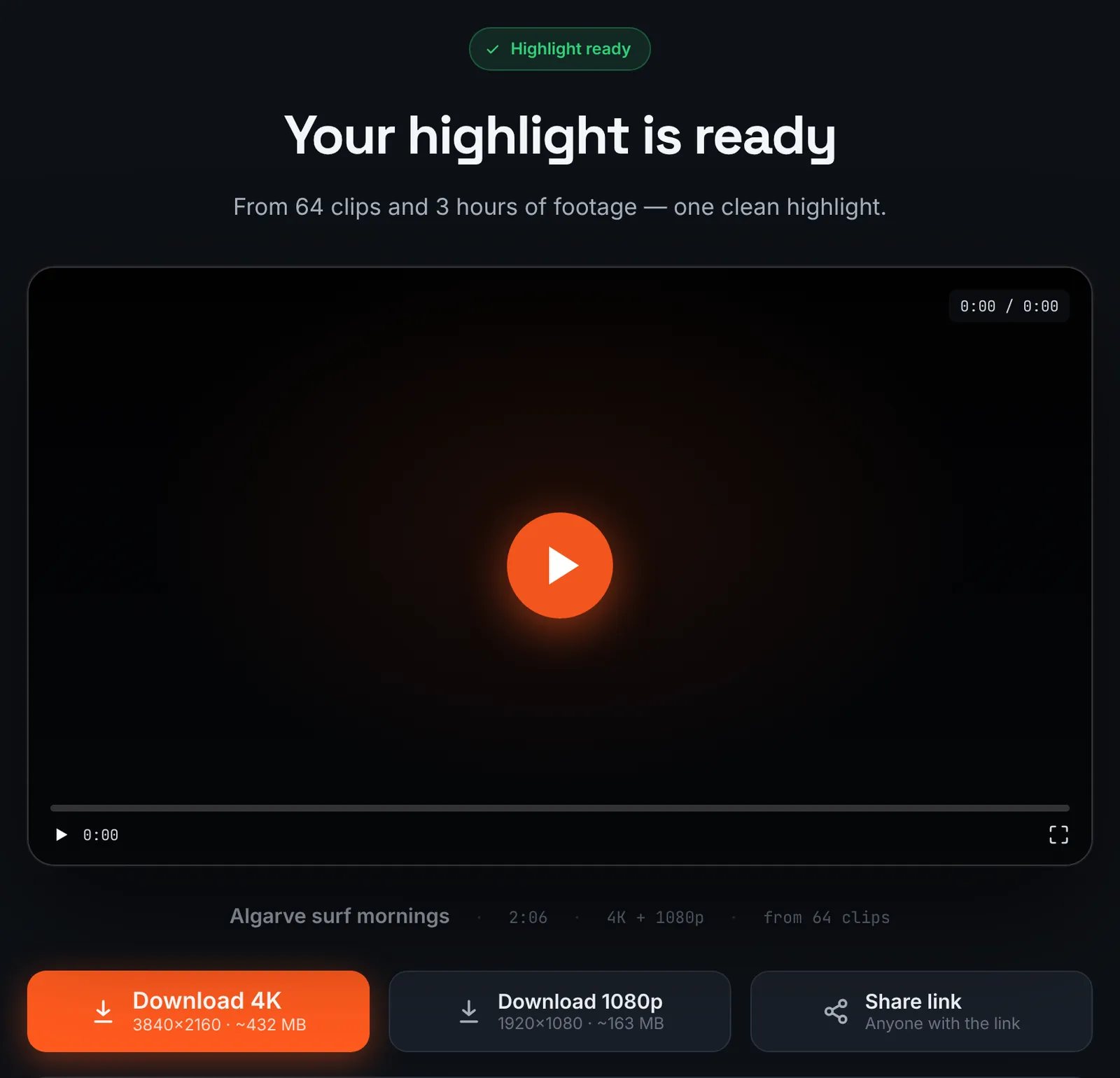
Osmo Action highlight ready to download.
Common mistakes and how to fix them
- Clips recorded to internal storage are missing
- A card reader only sees the microSD card. Connect the camera itself over USB-C to copy what was saved to the built-in storage.
- The horizon tilts on every lap
- Turn on HorizonSteady or HorizonBalancing before filming; DJI says HorizonSteady keeps the horizon level through a full rotation.
- A square 4K Custom clip next to wide ones
- The Action 6 can record a square 3840x3840 frame meant for reframing later. Crop it to 16:9 in an app before the upload if you want it to fill a wide frame.
- Slow motion that stutters
- A highlight uses one frame rate, the lowest among the clips that make the cut and never above 60 fps. Mixing 24 fps clips with 120 fps ones pulls the whole video down to 24.
Doing it by hand vs with RawClip
DJI Mimo and LightCut can build quick edits on a phone, and a desktop editor gives full control. RawClip sits between them: no timeline, but the whole day of footage is considered.
| Aspect | By hand | With RawClip |
|---|---|---|
| Where it runs | Phone app or desktop editor | Browser; the work happens on the server |
| Amount of footage | Limited by phone storage or your patience | Up to 24 hours per order |
| Picking moments | You choose clips or rely on templates | Analysis ranks the moments in every clip |
| Finishing touches | Text, effects, speed changes | Music on or off and the length |
| Cost | Free apps or editor licence plus time | $9.90 for up to 1 hour, $19.90 for up to 6 hours, $39.90 for up to 12 hours, $79.90 for up to 24 hours |
For a single clip on a phone, Mimo is the fastest tool. For a week of riding spread over dozens of files, an automatic highlight saves the evenings you would spend scrubbing.
Try it with your own footage
Orders under 1h of footage are processed first and paid later: you watch a watermarked 480p preview and pay only to unlock the 4K and 1080p files. Pricing is per order and depends only on how much footage you send: $9.90 for up to 1 hour, $19.90 for up to 6 hours, $39.90 for up to 12 hours, $79.90 for up to 24 hours.