How to make a highlight video from MMA sparring footage
Published · Updated
Short answer
Put one camera on a tripod at the edge of the mat or ring, high enough to see over people standing in front, and record whole rounds without stopping. Upload every round to RawClip, phone clips from teammates included, and choose one of the highlight lengths it suggests from the exchanges, takedowns and scrambles it found.
What you need
- A camera or phone on a tripod or a small grip-tripod, positioned at the edge of the training area
- A charger or power bank, since rounds add up quickly
- A computer to collect the files after training
- A shared Google Drive folder, if teammates upload their phone clips there
Step by step
-
Set up one fixed camera for the whole session
Sparring is best filmed from a fixed camera: one position that sees the whole mat or ring, with the camera above head height so coaches and waiting partners do not block it. A small extendable tripod such as GoPro's Shorty, which reaches 22.7 cm and has a built-in tripod, works on a ledge or a stack of mats.
With an action camera, a wide field of view keeps both fighters in frame when they move around the cage. A linear lens setting reduces the fisheye bend at the edges.
-
Record whole rounds
Start recording before the bell and stop after the round, or simply leave the camera running all session. Resting between rounds is dead time that can stay in the footage; it costs nothing to upload and the analysis leaves it out.
-
Upload the rounds from your computer
Copy the files from the camera and any teammates' phones into one folder and drop it into a RawClip highlight. Rounds from different partners and angles go into the same order and are edited into one video.
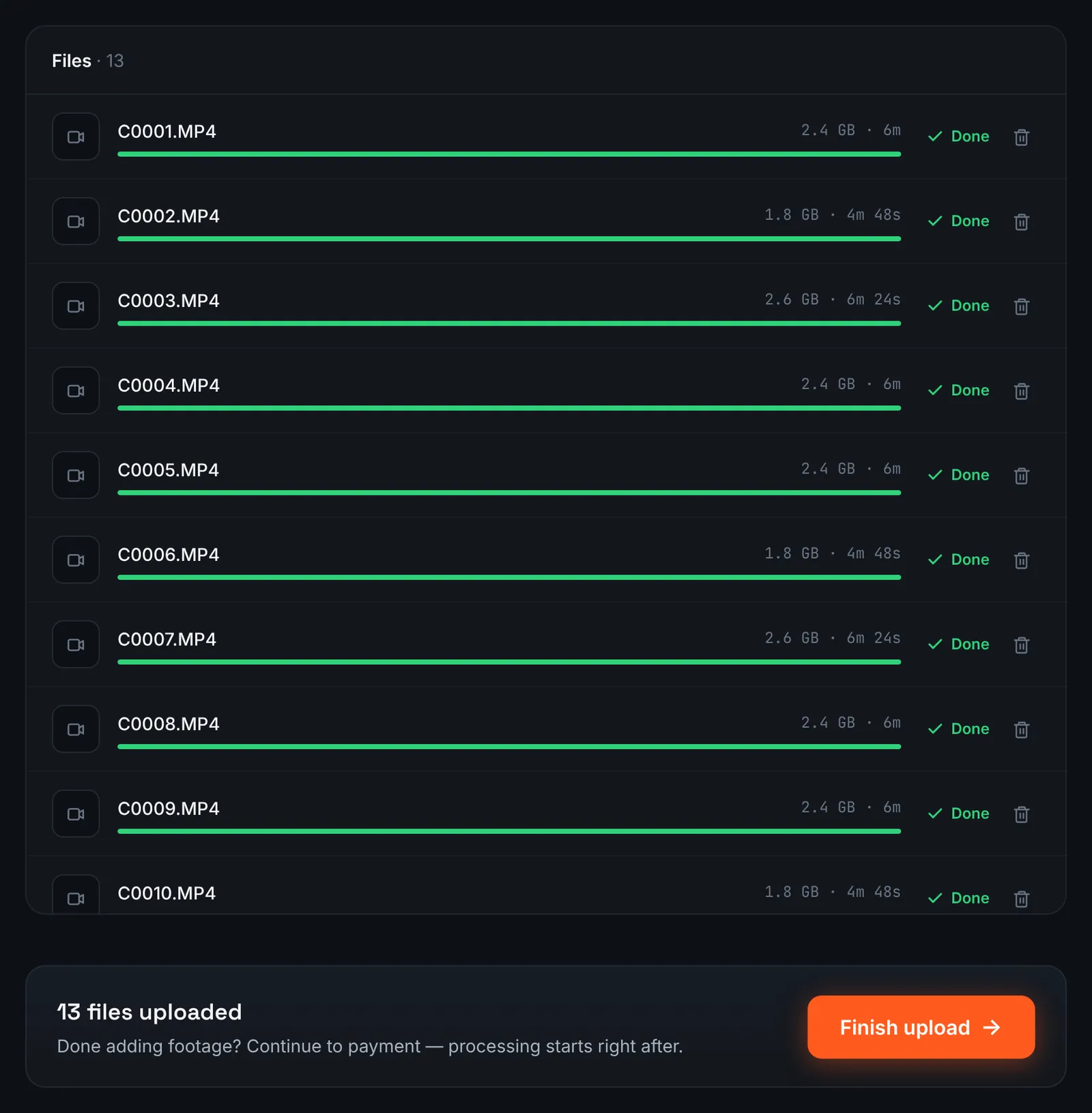
A night of sparring rounds uploaded together. -
Or collect teammates' clips in Google Drive
If the gym keeps a shared Google Drive folder for training footage, set it to "Anyone with the link", choose Google Drive link in RawClip and paste it.
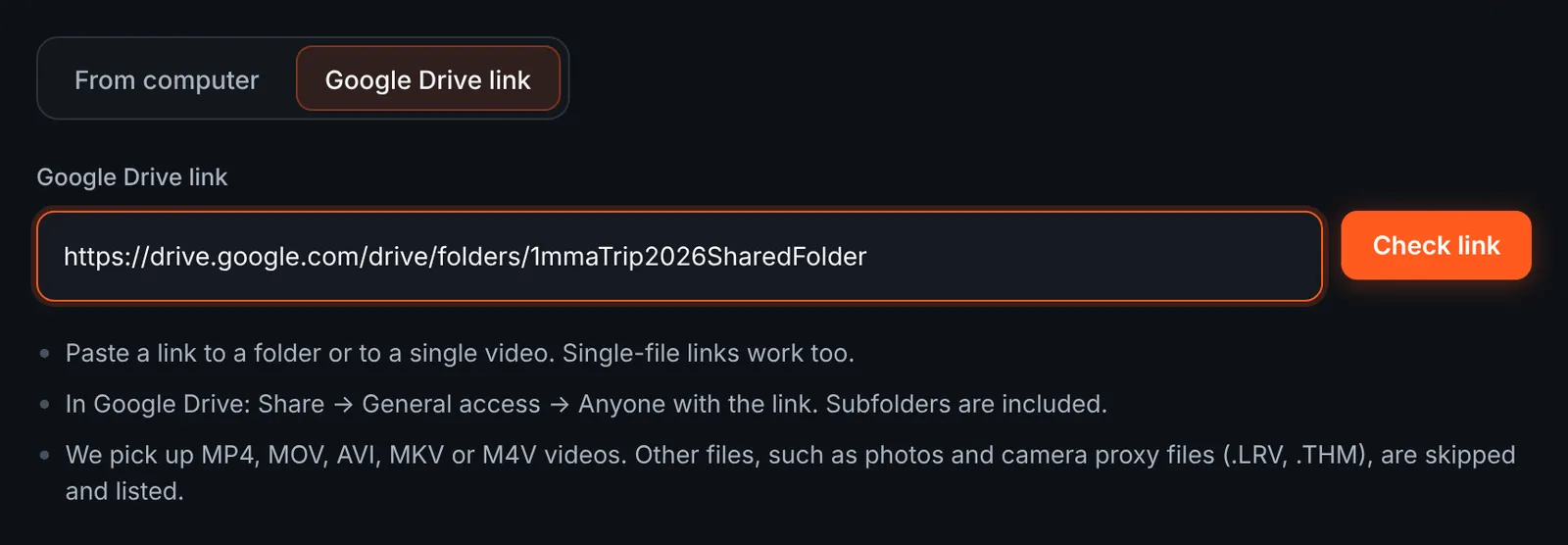
The gym's shared folder as the source. -
Choose which rounds to download
The review lists each round with its length, by folder. Photos in the folder are skipped and listed as not videos. Untick rounds you do not want in the highlight, then download.
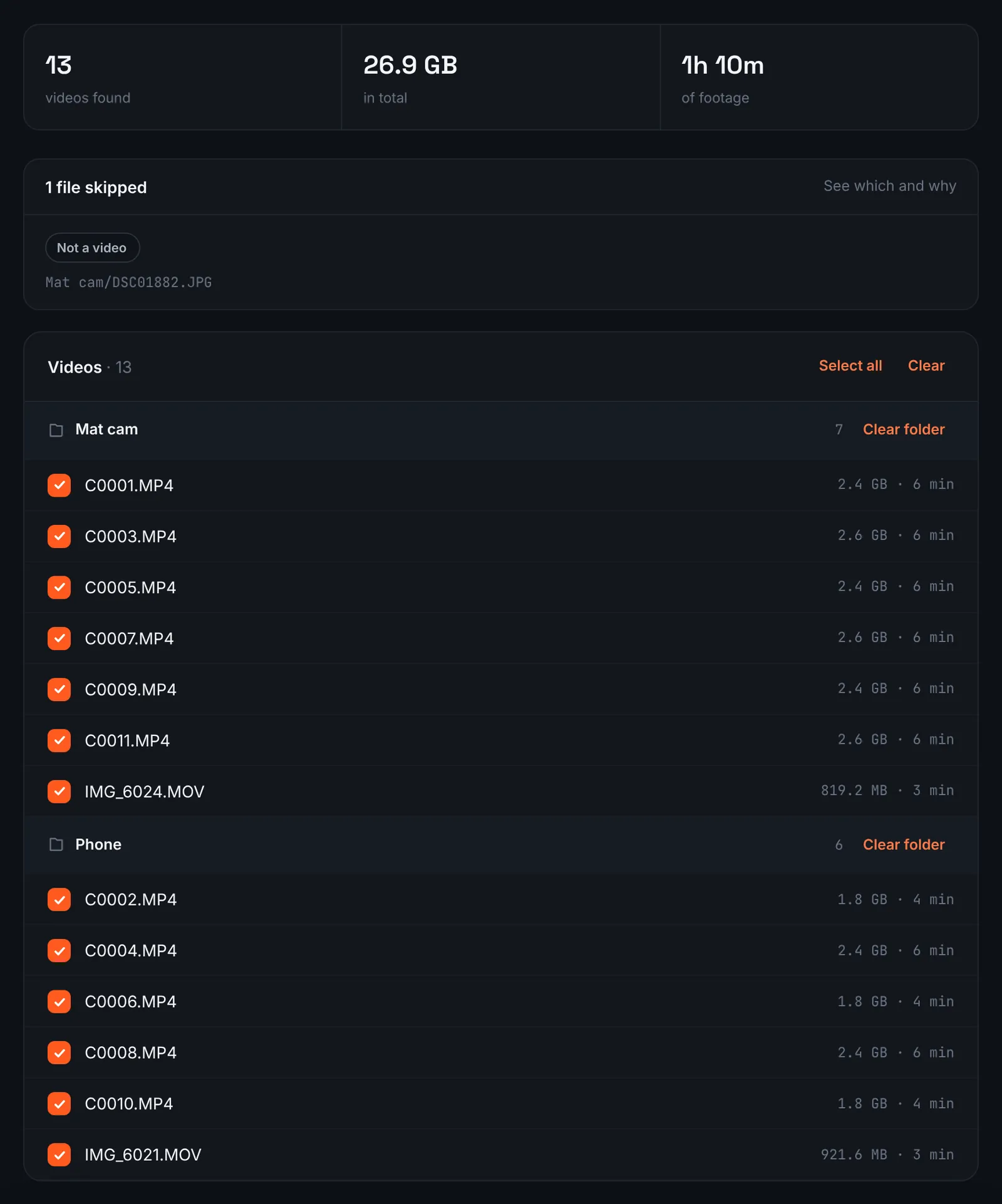
Sparring rounds found in the gym folder. -
Pay for the footage
Rounds, rests and phone angles are summed into one footage length, and the cost follows that sum: $9.90 for up to 1 hour, $19.90 for up to 6 hours, $39.90 for up to 12 hours, $79.90 for up to 24 hours. Orders under 1h of footage are processed first and paid later: you watch a watermarked 480p preview and pay only to unlock the 4K and 1080p files. Nothing else is needed from you until the length choice.
-
Choose the length of the fight reel
The choose screen lists quality levels, each with a clip count and an estimated length calculated from the moments found in your rounds. A short level becomes a tight reel of the best exchanges; a longer one keeps more of the grappling and the build-up.
For 3 days after the highlight is ready you can re-cut it to another length or switch the music on or off without a new upload: the first 3 re-cuts are free, each one after that is $2.90.
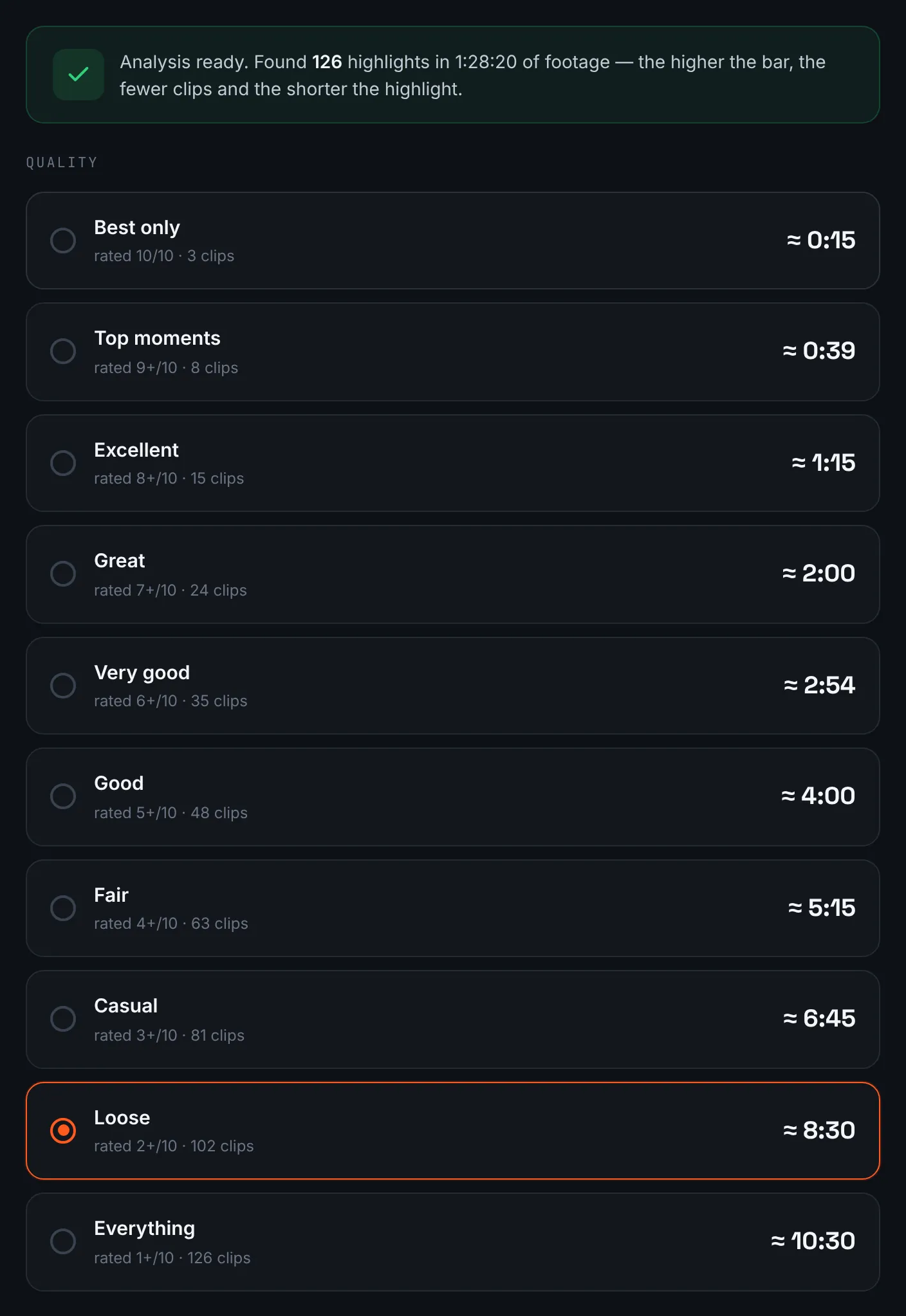
Length options for a sparring session. -
Download and review it with your coach
Save the reel in 4K or 1080p, or pass the link to your teammates within 14 days. A highlight shows the best moments, so keep the full rounds too if your coach wants to study mistakes.
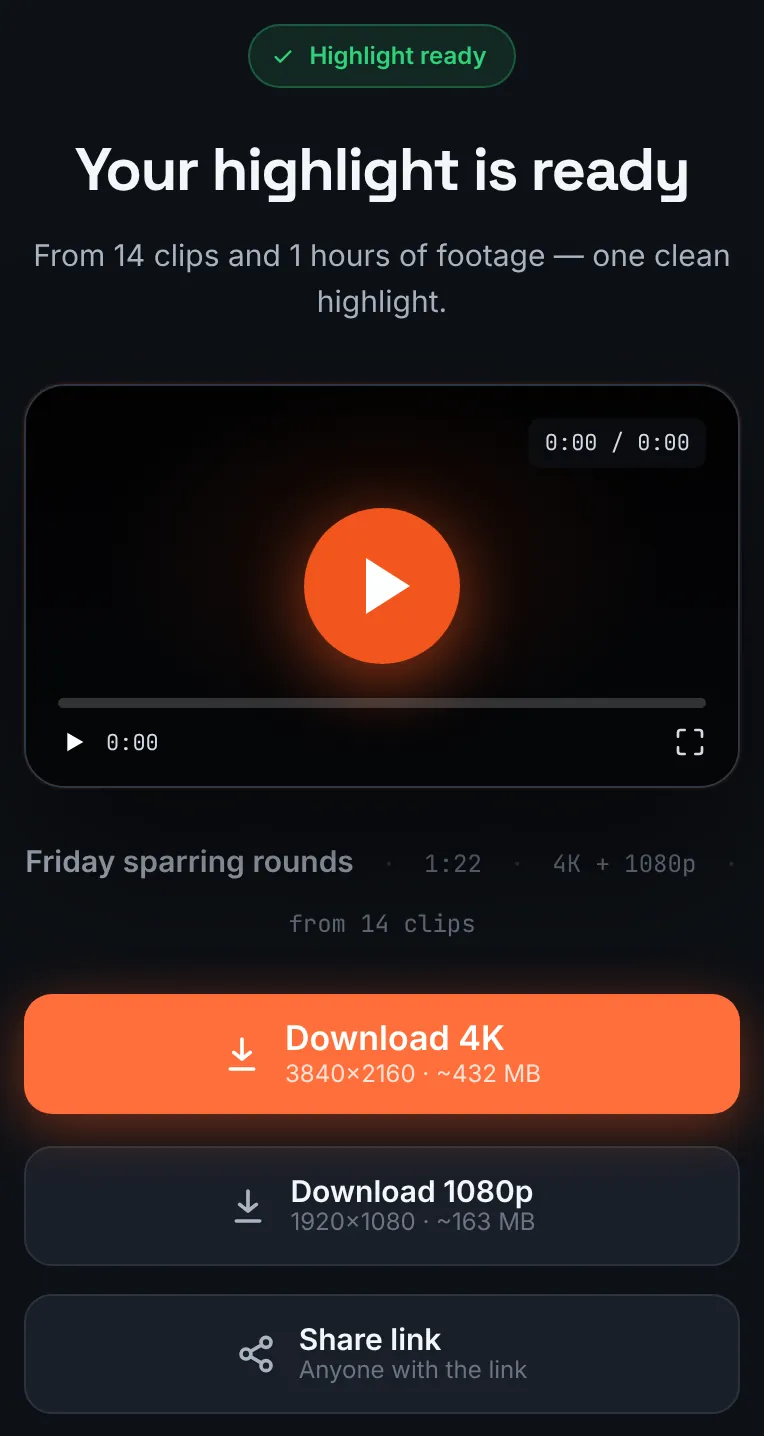
The finished sparring reel.
Common mistakes and how to fix them
- People standing in front of the camera
- The camera was too low. Raise it above head height at the edge of the mat.
- Fighters leave the frame
- The angle was too narrow. Use a wider setting or move the camera back.
- Ran out of storage mid-session
- Long sessions fill cards fast. Clear the card before training and carry a spare.
- Expecting a breakdown of technique
- A highlight is a reel of the best moments, not a coaching analysis. Keep the raw rounds for study.
Doing it by hand vs with RawClip
A training session can be an hour of footage with a few minutes of standout exchanges.
| Aspect | By hand | With RawClip |
|---|---|---|
| Finding exchanges | Watch every round | Moments ranked across all rounds |
| Rests between rounds | Cut out by hand | Passed over automatically |
| Several phones | Collected and synced by hand | One order for all clips |
| Analysis for coaching | Full rounds, slow motion, notes | Not the purpose: a highlight reel |
| Cost | Your time after training | $9.90 for up to 1 hour, $19.90 for up to 6 hours, $39.90 for up to 12 hours, $79.90 for up to 24 hours |
Technique study needs the full rounds. A reel to share with the team or a sponsor is quicker as an automatic highlight.
Try it with your own footage
Orders under 1h of footage are processed first and paid later: you watch a watermarked 480p preview and pay only to unlock the 4K and 1080p files. Pricing is per order and depends only on how much footage you send: $9.90 for up to 1 hour, $19.90 for up to 6 hours, $39.90 for up to 12 hours, $79.90 for up to 24 hours.