How to make a highlight video from rafting footage
Published · Updated
Short answer
Put a waterproof camera on a helmet or chest mount with a float attached, and let it run through every rapid. Upload the whole day from all cameras in the boat, plus any clips filmed from the bank, to RawClip, and pick a highlight length from the options it calculates from the rapids and splashes it found.
What you need
- A waterproof action camera on a helmet or chest mount, with a float or tether
- Optional clips filmed from the riverbank or a second boat
- A card reader or cable and a computer
- The rafting company's Google Drive folder, if they film the trip
Step by step
-
Make sure the camera floats
A camera that comes loose in a rapid is gone. GoPro's Floaty case acts as a life jacket for HERO10 to HERO13 cameras and has a tether point, though it will not hold up extra accessories; The Handler, a floating hand grip, bobs up with its orange end showing. Use one of them and tether the camera to your helmet or vest.
-
Pick angles that show the water
A chest mount shows the paddle, the bow and the wave you are about to hit, which reads better than a helmet view pointed at the sky. The guide's helmet at the back of the raft films the whole crew. Clips from the bank as the raft drops into a big rapid are the shots everyone will want.
Expect water on the lens after every wave; a quick wipe in calm water keeps the next rapid clear.
-
Upload the river day from your computer
Copy the clips from every camera into one folder and add it to a RawClip highlight. Calm stretches between rapids, safety talks and the drive to the put-in can all stay in the upload; the analysis looks for the action on its own.
All cameras from the raft, plus the bank footage, share one order, so the whole crew ends up in one video.
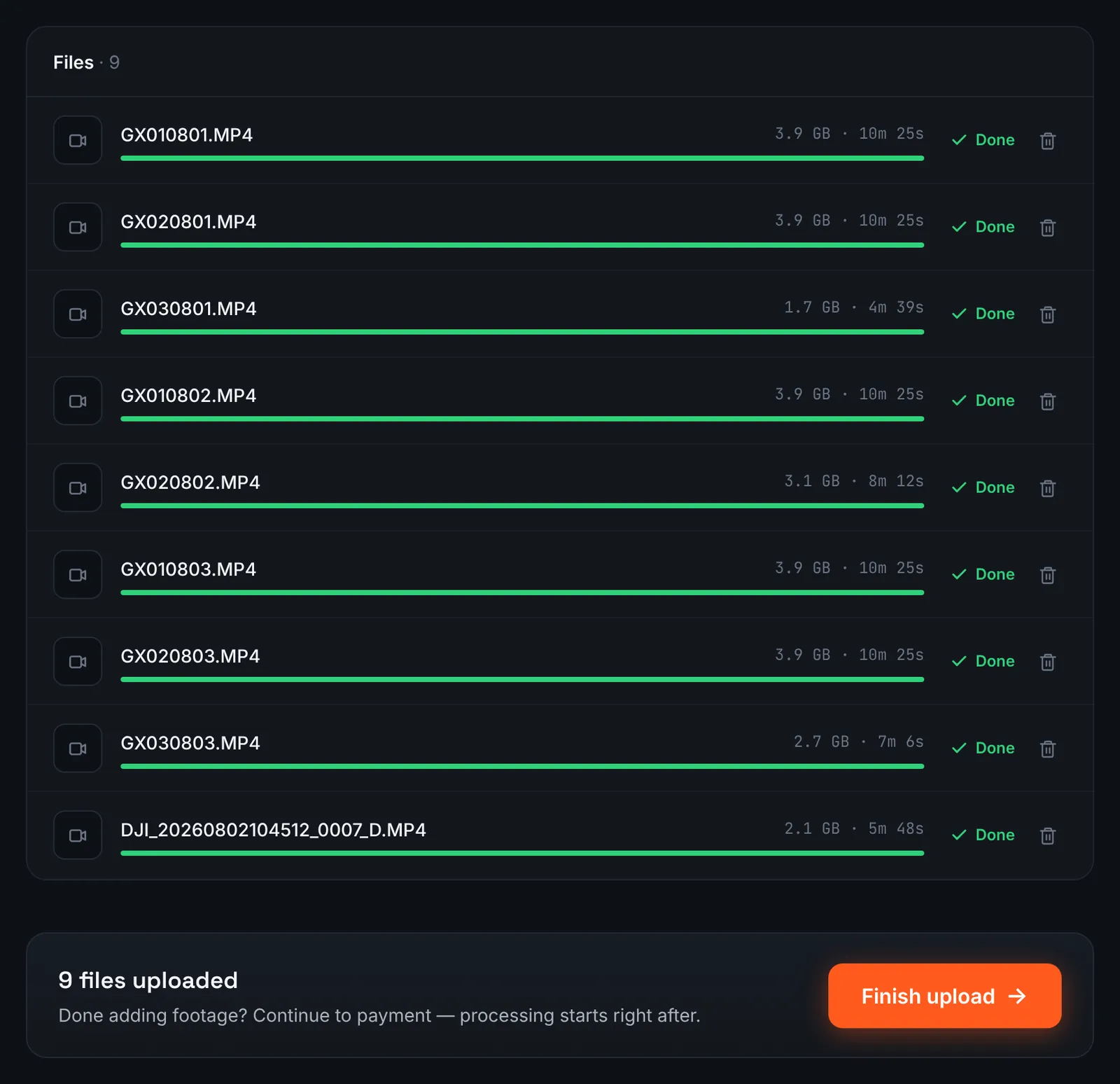
Helmet and boat cameras from a rafting day. -
Or paste the rafting company's Drive link
Rafting operators often share their footage through Google Drive. If the folder is open to "Anyone with the link", pick Google Drive link in RawClip and paste it; the clips come across without filling your phone.
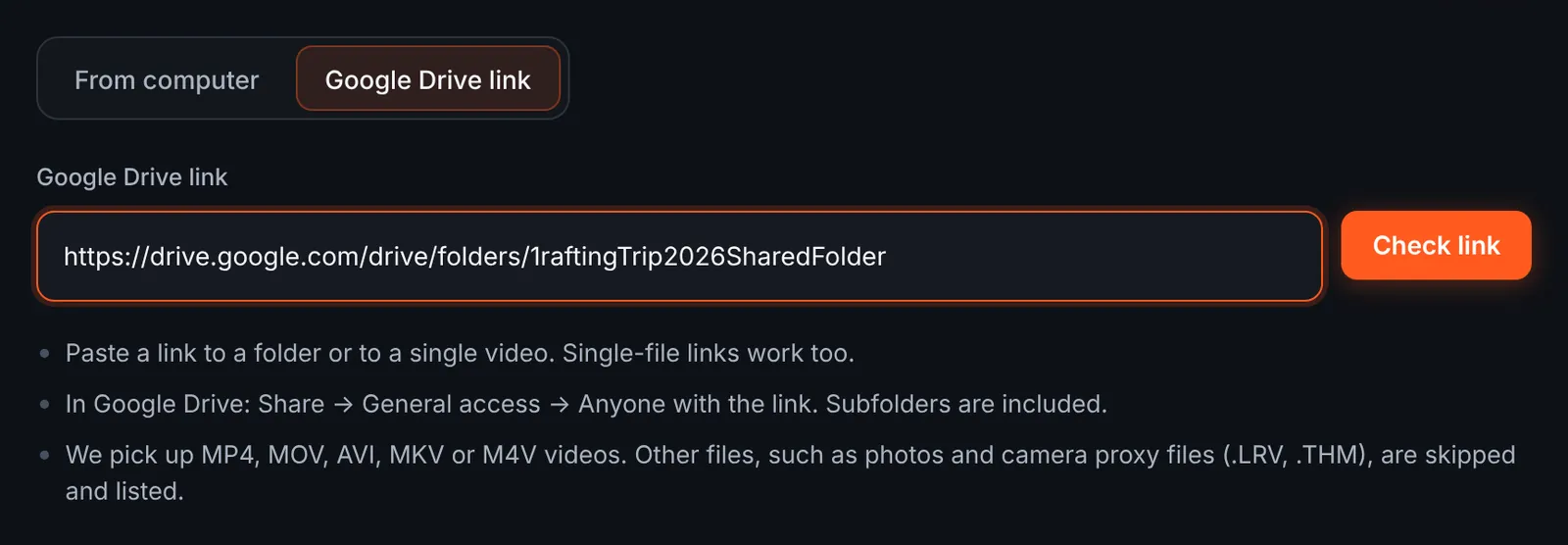
The operator's footage as a Drive folder. -
Check which river clips were found
The review groups the videos by folder, for example "Helmet" and "Boat", with lengths and a total. Camera side files are skipped and named. Untick other groups' clips if the folder covers the whole day, then download.
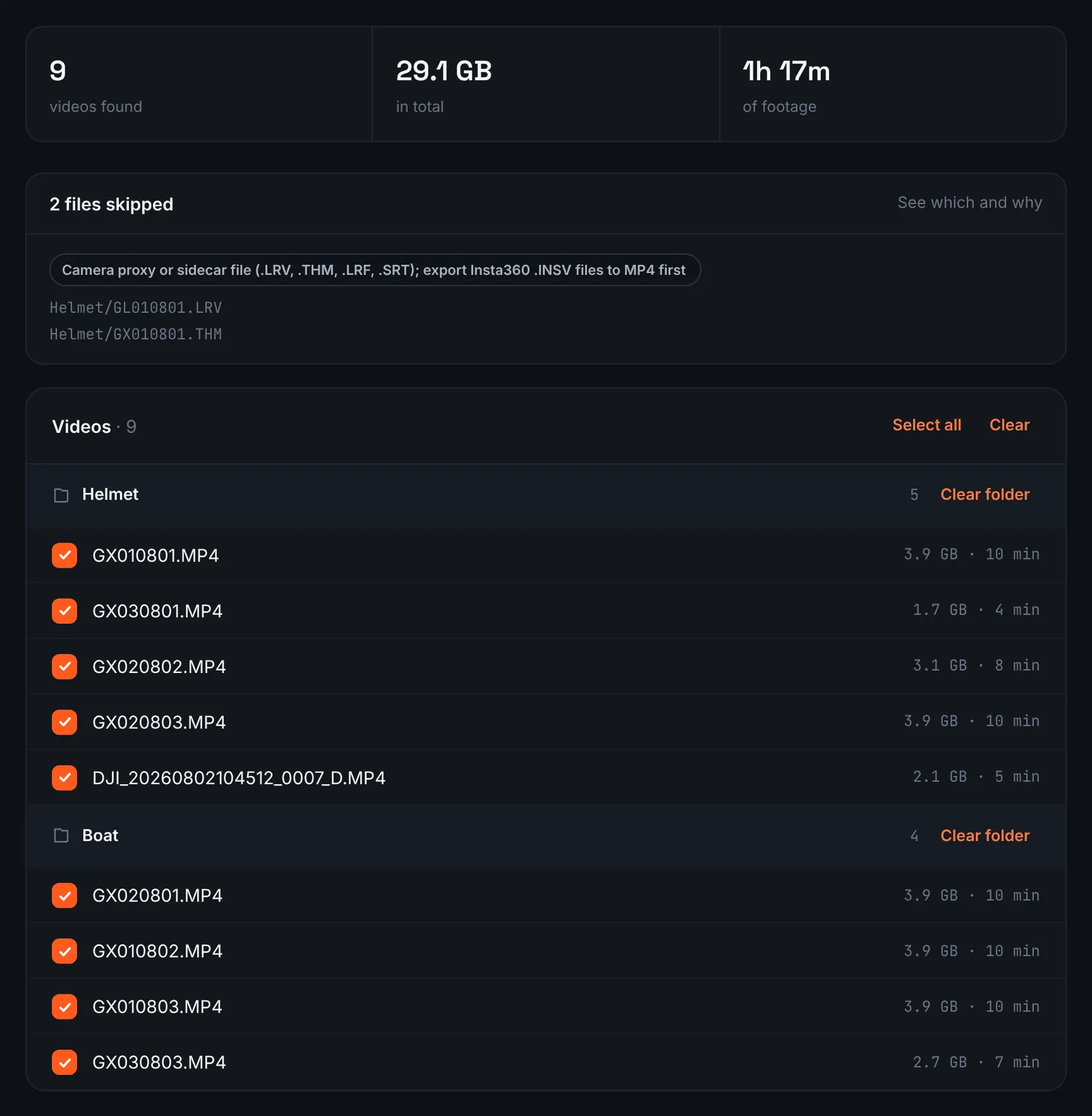
Rafting clips found in the folder. -
Pay and start the analysis
All cameras from the raft are added together and the river day is billed by that total ($9.90 for up to 1 hour, $19.90 for up to 6 hours, $39.90 for up to 12 hours, $79.90 for up to 24 hours). Orders under 1h of footage are processed first and paid later: you watch a watermarked 480p preview and pay only to unlock the 4K and 1080p files. The analysis follows by itself.
-
Pick a length for the river edit
The choose screen lists quality levels with clip counts and estimated durations, calculated from the rapids and splashes found in your footage. A short level is mostly the big drops; a longer one adds the crew, the scenery and the calmer water.
For 3 days after the highlight is ready you can re-cut it to another length or switch the music on or off without a new upload: the first 3 re-cuts are free, each one after that is $2.90.
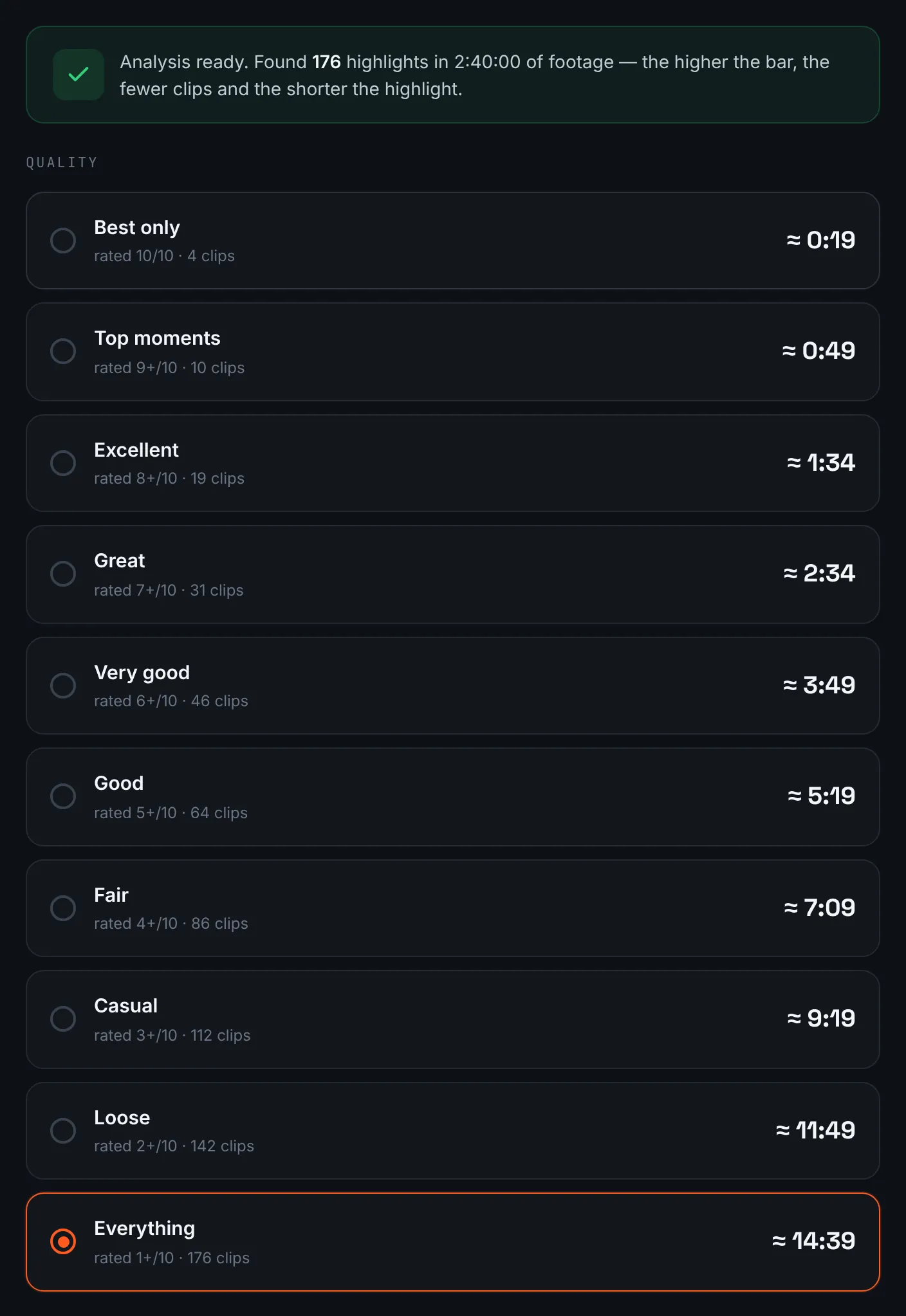
Length options for a river day. -
Download the rafting video
Send the crew the link, or download the 4K and 1080p files yourself; the river video stays online for 14 days.
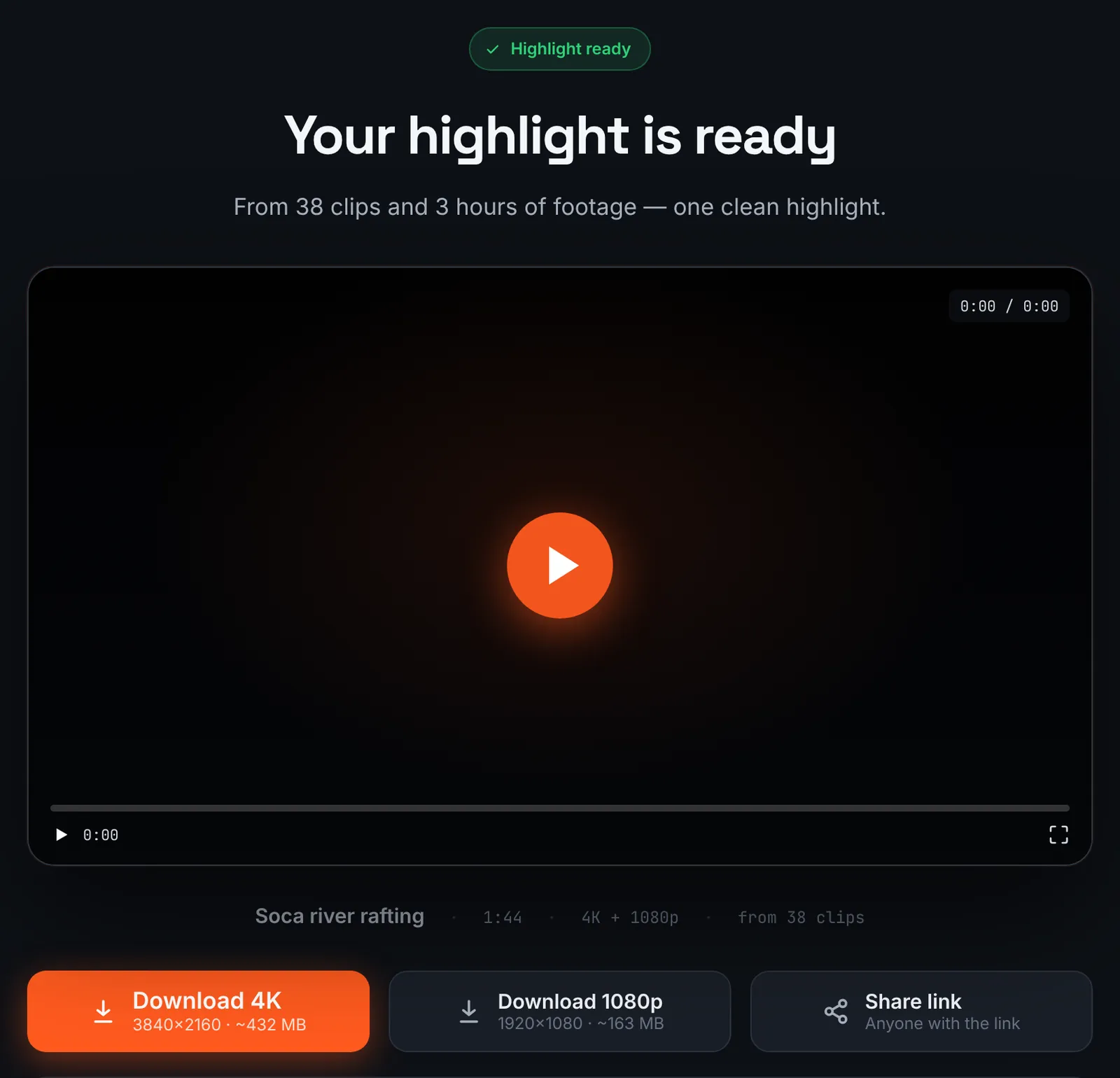
The rafting highlight.
Common mistakes and how to fix them
- The camera sank
- No float and no tether. Use a floating case or grip and tie it on.
- Only sky and helmet straps
- A helmet camera tilted up misses the water. Angle it down, or move it to the chest.
- Rapids look flat
- A wide lens flattens waves. Bank footage from low down shows the real size of the drop.
- Missed the biggest rapid
- Recording was stopped to save battery. Carry a spare and keep the camera running through the rapids.
Doing it by hand vs with RawClip
A rafting day is a few minutes of whitewater spread across hours on the river.
| Aspect | By hand | With RawClip |
|---|---|---|
| Finding the rapids | Scrub through every calm stretch | Action found and ranked for you |
| Several cameras | Synced by hand | Ordered by recording time in one order |
| Operator footage | Downloaded and merged manually | Added to the same highlight |
| Finishing | Titles, slow motion, map of the river | Length and music |
| Cost | Your evening | $9.90 for up to 1 hour, $19.90 for up to 6 hours, $39.90 for up to 12 hours, $79.90 for up to 24 hours |
A film about a multi-day expedition deserves a hand edit. A day on the river with friends is a perfect fit for an automatic highlight.
Try it with your own footage
Orders under 1h of footage are processed first and paid later: you watch a watermarked 480p preview and pay only to unlock the 4K and 1080p files. Pricing is per order and depends only on how much footage you send: $9.90 for up to 1 hour, $19.90 for up to 6 hours, $39.90 for up to 12 hours, $79.90 for up to 24 hours.