How to make a highlight video from surf footage
Published · Updated
Short answer
Surf footage is mostly paddling and waiting, with a few seconds of riding per wave, so film a lot and let the selection happen afterwards. Upload every clip from the board mount, mouth mount and the beach to RawClip as it is, and choose a highlight length from the options it builds out of the waves it found.
What you need
- Clips from a waterproof action camera on a board, mouth or hand mount, and optionally a phone or long lens on the beach
- A card reader or cable to copy the files to a computer
- A browser and enough upload bandwidth for a whole session
- A Google Drive folder with the session, if a friend filmed from the beach and shared it there
Step by step
-
Film whole sets, not single waves
You never know which wave will be the good one, and pressing record at the last moment usually misses the drop. Keep the camera running through each set, or for the whole session if the battery allows. A point-of-view angle from a mouth mount shows the barrel and the lip, while a board mount facing back captures your face and the turn. GoPro pairs its Bite Mount with a Floaty so the camera does not sink after a wipeout; its adhesive surfboard mounts come with tethers and are not recommended for soft-tops.
If a friend can stand on the beach with a phone or a camera on a tripod, those wide shots give the edit a sense of the spot and of the wave size.
-
Keep water drops off the lens
A single drop sitting on the lens ruins a ride more than shaky footage does. A HERO13 Black is waterproof to 10 metres without a housing and ships with a hydrophobic lens cover that sheds water, but it still helps to wipe the lens before paddling out and dunk the camera now and then so the lens stays evenly wet instead of collecting beads. A clear lens is worth more than any camera setting on a wet day.
-
Upload the session from your computer
Copy the clips from the camera and the phone into one folder and drag all of it into a new RawClip highlight. Long stretches of paddling stay in; deleting them first is wasted effort, because the analysis looks for the rides on its own.
Board-mount, mouth-mount and beach footage from different cameras belongs in the same order, so one surf trip turns into one video.
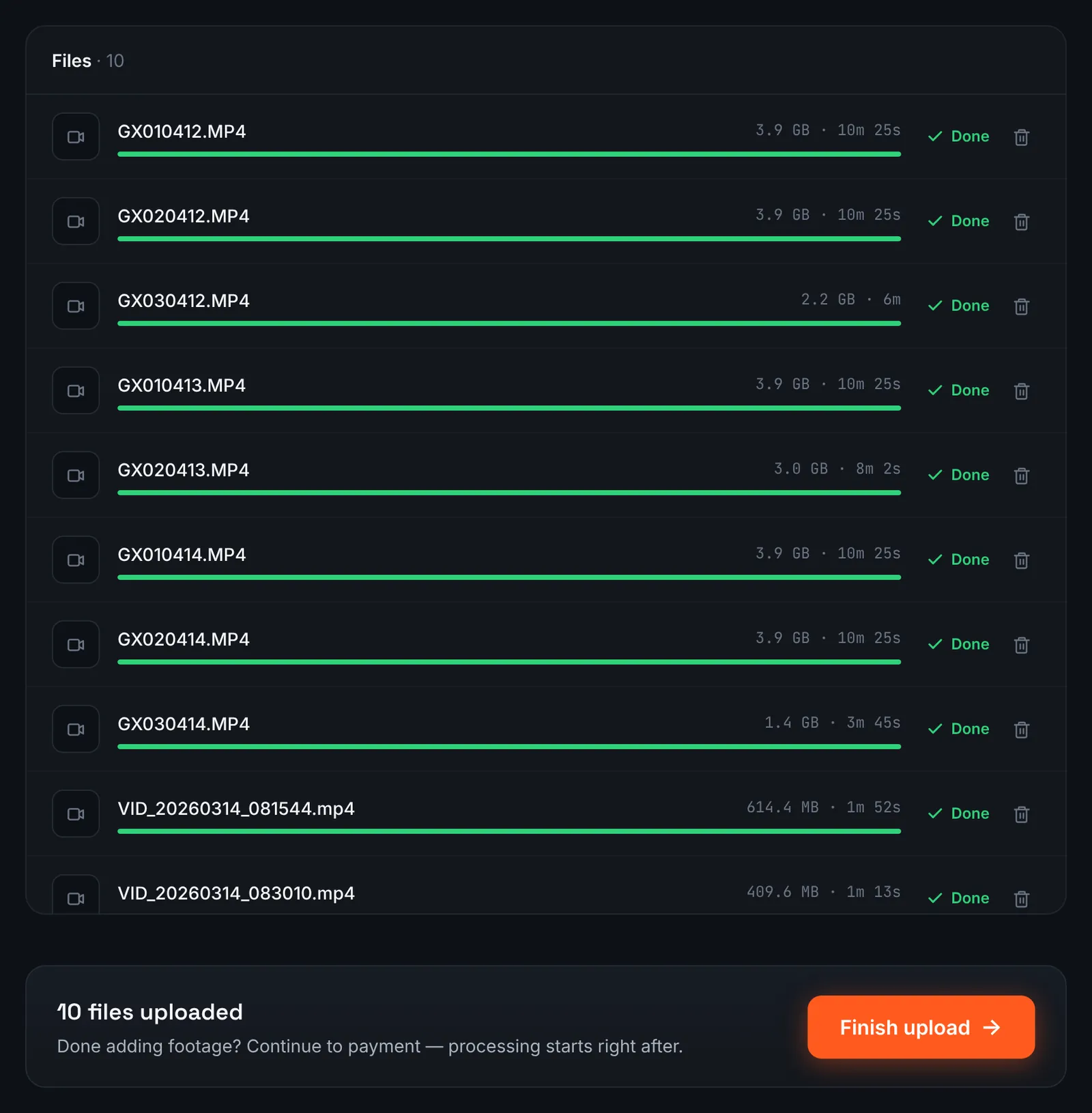
Water camera and beach phone clips in one upload. -
Or collect the beach footage through a Google Drive link
When the person filming from the sand shares a Google Drive folder with you, there is no need to download it. Set it to "Anyone with the link", choose Google Drive link in RawClip and paste the address, and RawClip fetches the clips itself.
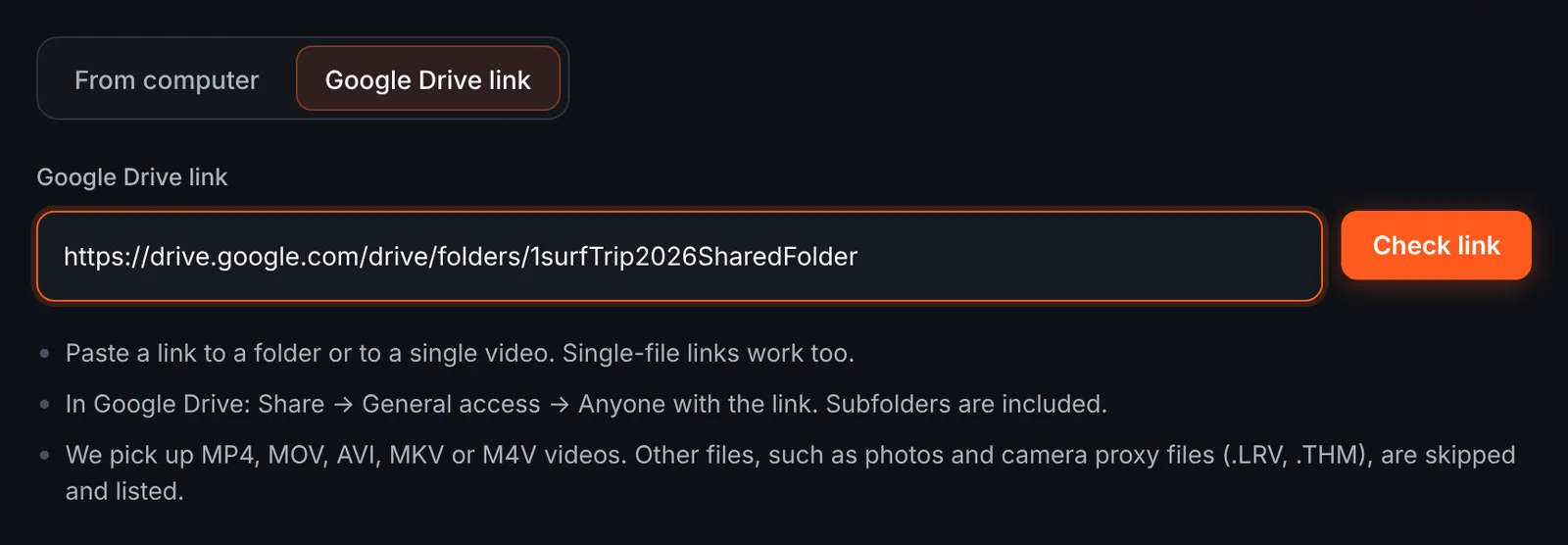
A shared Drive folder from the beach filmer. -
Check the surf clips found in the folder
The review lists each video with its length, grouped by subfolder such as "Board mount" and "Beach phone". GoPro LRV and THM side files are skipped and shown in their own list. Untick anything that is not from this session, then start the download.
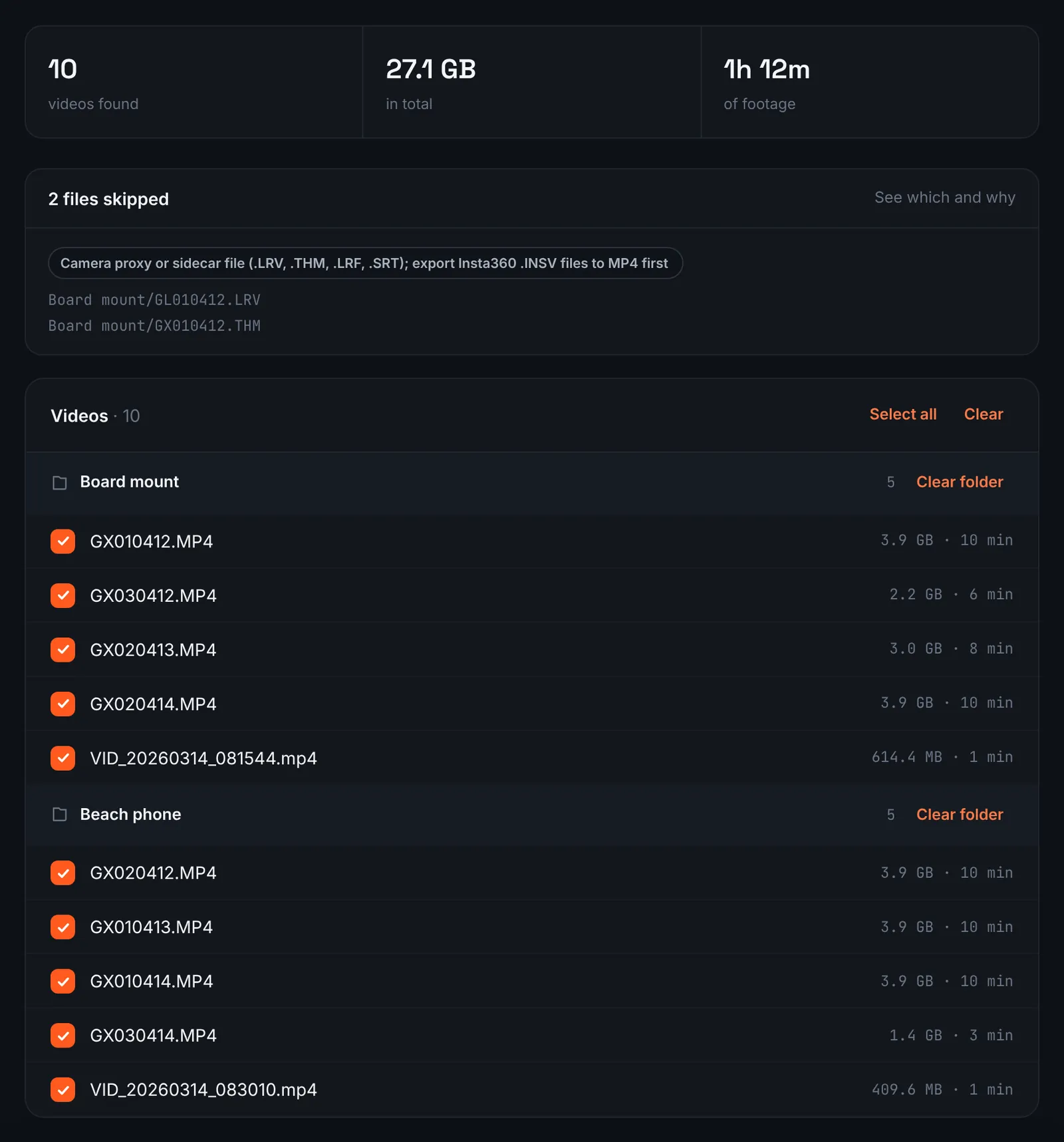
Surf videos from Drive, grouped by folder. -
Pay by footage length
Paddling time counts toward the length too, and the session total decides the price: $9.90 for up to 1 hour, $19.90 for up to 6 hours, $39.90 for up to 12 hours, $79.90 for up to 24 hours. Orders under 1h of footage are processed first and paid later: you watch a watermarked 480p preview and pay only to unlock the 4K and 1080p files. The analysis then searches every clip for rides.
-
Pick how many waves make the cut
A long session holds dozens of rides, and the choose screen turns that into options: the top quality levels keep only the best waves, the lower ones keep more of them. Each line shows the number of clips and an estimated duration based on what the analysis found in your footage.
The generated soundtrack is switched on by default and can be turned off. For 3 days after the highlight is ready you can re-cut it to another length or switch the music on or off without a new upload: the first 3 re-cuts are free, each one after that is $2.90.
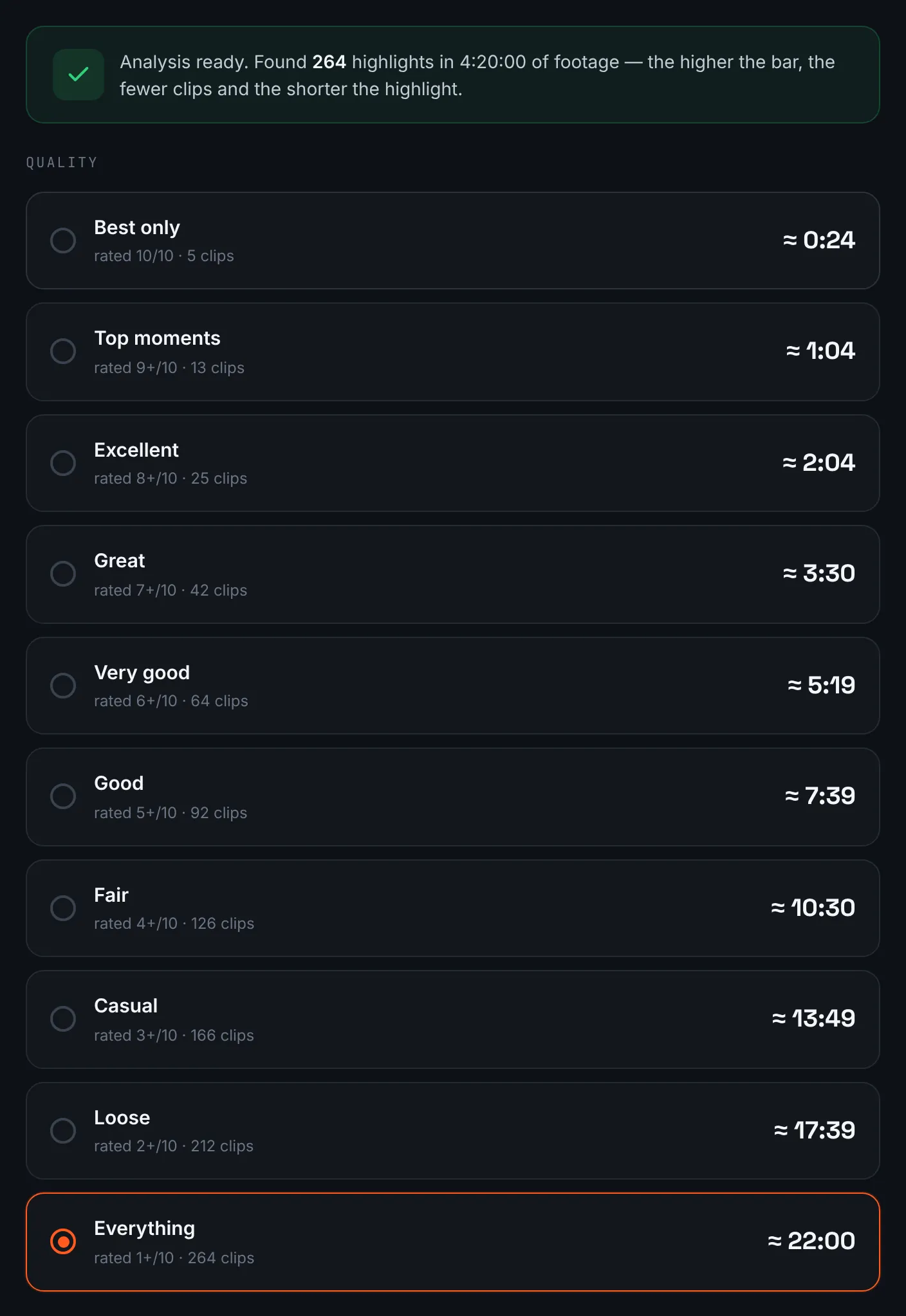
Higher levels keep only the best rides. -
Download the surf edit
Save the 4K file for the archive and share the 1080p one or the link. The files are available for 14 days.
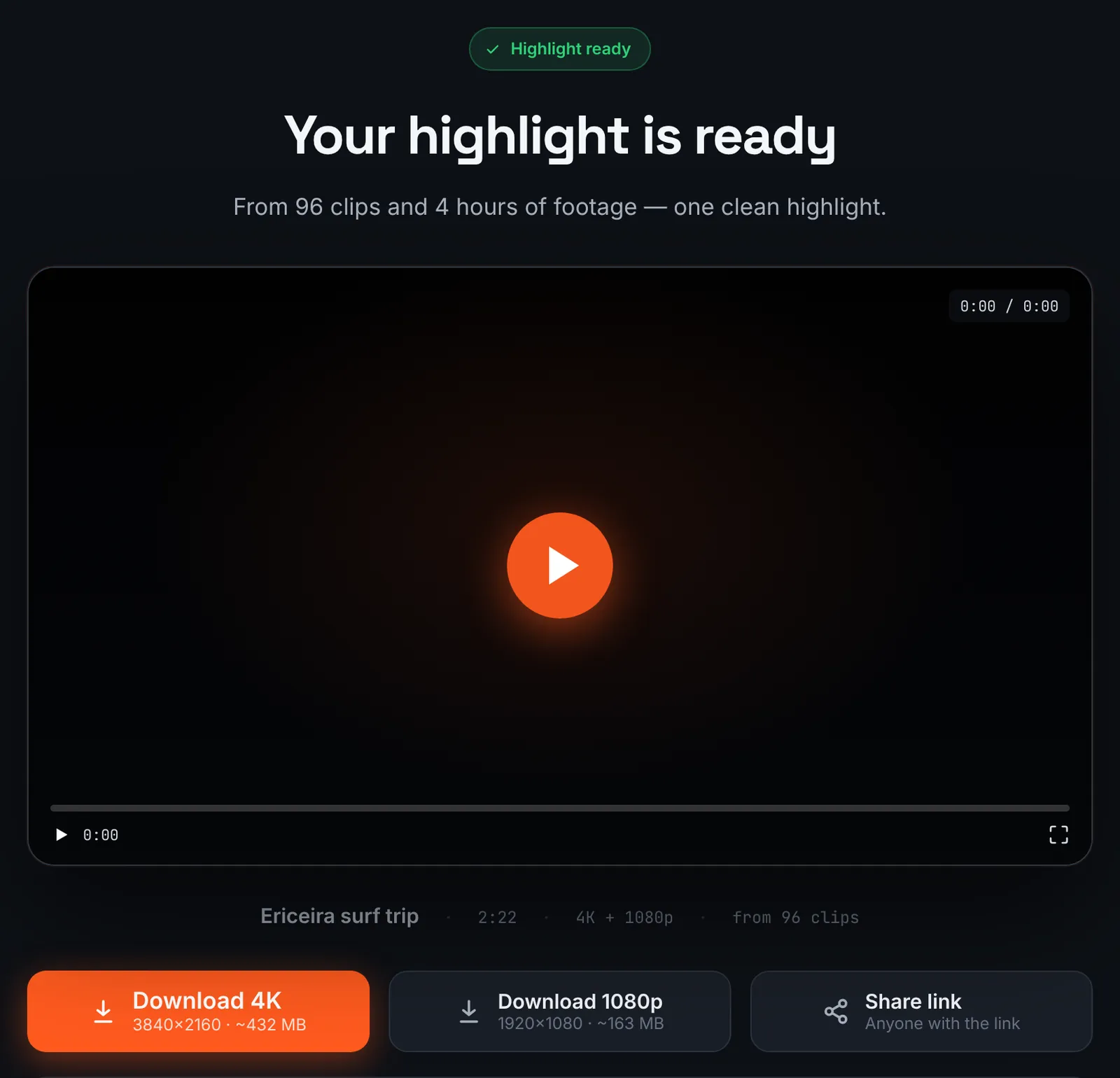
The finished surf highlight.
Common mistakes and how to fix them
- Every ride is blurred by a drop
- Wipe or wet the lens before each set; a hydrophobic coating or lens cover helps too.
- Only the horizon, no surfer
- A board mount pointing forward films the ocean. Turn it back toward the rider, or use a mouth mount for the surfer's view.
- Choppy slow motion
- Film at 60 fps or more and keep all cameras at the same rate; the highlight uses the lowest frame rate among the clips it keeps, up to 60 fps. See slow motion for why.
- Dark, grainy faces at dawn
- Early sessions are low light. Expose for the face, or keep the dawn clips for atmosphere and rely on later, brighter waves.
Doing it by hand vs with RawClip
A surf session might be two hours of water time with ten minutes of riding. Finding those minutes is the whole job.
| Aspect | By hand | With RawClip |
|---|---|---|
| Finding the rides | Scrub through every paddle and every set | Rides are found and scored for you |
| Several angles | Sync board, mouth and beach clips by hand | Ordered by recording time and mixed automatically |
| Length | Decided by how much patience you have | Chosen from options built from your session |
| Polish | Speed ramps, colour, titles | Length and music only |
| Cost | Your evening | $9.90 for up to 1 hour, $19.90 for up to 6 hours, $39.90 for up to 12 hours, $79.90 for up to 24 hours |
For a film about one perfect swell, edit by hand. For the weekly session or a surf trip, an automatic highlight shows the rides without hours of scrubbing through paddling.
Try it with your own footage
Orders under 1h of footage are processed first and paid later: you watch a watermarked 480p preview and pay only to unlock the 4K and 1080p files. Pricing is per order and depends only on how much footage you send: $9.90 for up to 1 hour, $19.90 for up to 6 hours, $39.90 for up to 12 hours, $79.90 for up to 24 hours.