How to edit FPV drone footage into a highlight
Published · Updated
Short answer
Use the recording saved on the FPV drone itself rather than the goggles copy, which is lower quality and may carry on-screen overlays. Stabilise it in the camera or afterwards with Gyroflow, upload the clips to RawClip, and choose one of the highlight lengths it suggests once the analysis has scored every pack.
What you need
- A DJI Avata 2 or another FPV drone, or a cinewhoop with an action camera on top
- The drone recordings, from internal storage or the microSD card
- Gyroflow, if you fly with in-camera stabilisation switched off
- Or a Google Drive folder where the pilots dropped their packs
Step by step
-
Take the aircraft recording, not the goggles one
On the Avata 2 the main video is recorded on the aircraft, to internal storage or the microSD card. If you set it to record in the goggles as well, that second copy is the live view at a lower bitrate and includes the on-screen display by default. For a highlight, always copy the aircraft files, over USB with the drone switched off or from the card.
-
Stabilise the footage
With RockSteady or HorizonSteady on, Avata 2 clips come out steady and need nothing more. If you flew with stabilisation off for a raw look, run the clips through Gyroflow, a free gyro-based stabiliser. Gyroflow asks for in-camera stabilisation to be off and the FOV set to Wide, and it has an official lens profile for the Avata 2.
For a cinewhoop carrying a GoPro, HyperSmooth or a Gyroflow pass does the same job. Export stabilised clips as MP4 before uploading.
-
Upload the packs from your computer
One battery pack is often one long file. Upload every pack from the session, including the ones where you only practised; the analysis scores the moments that make an FPV video worth watching and leaves the plain cruising out.
Ground clips of the spot or a second pilot's footage can go into the same order and become part of the same highlight.
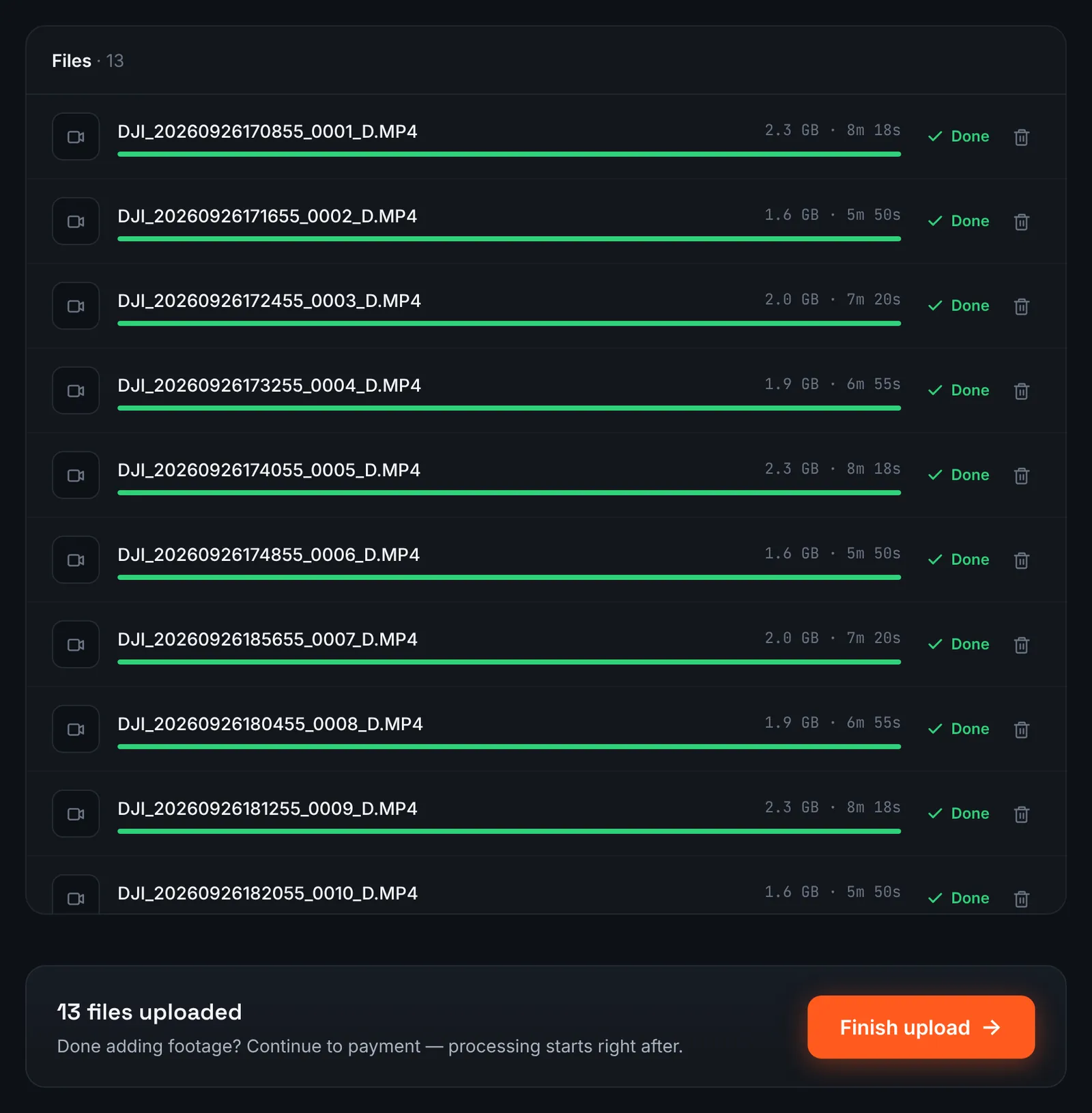
A session of FPV packs uploaded from the computer. -
Or paste a Google Drive link to the session
Pilots who sync sessions to Google Drive can share that folder with "Anyone with the link", switch RawClip to Google Drive link and paste it. The download happens on the RawClip server.
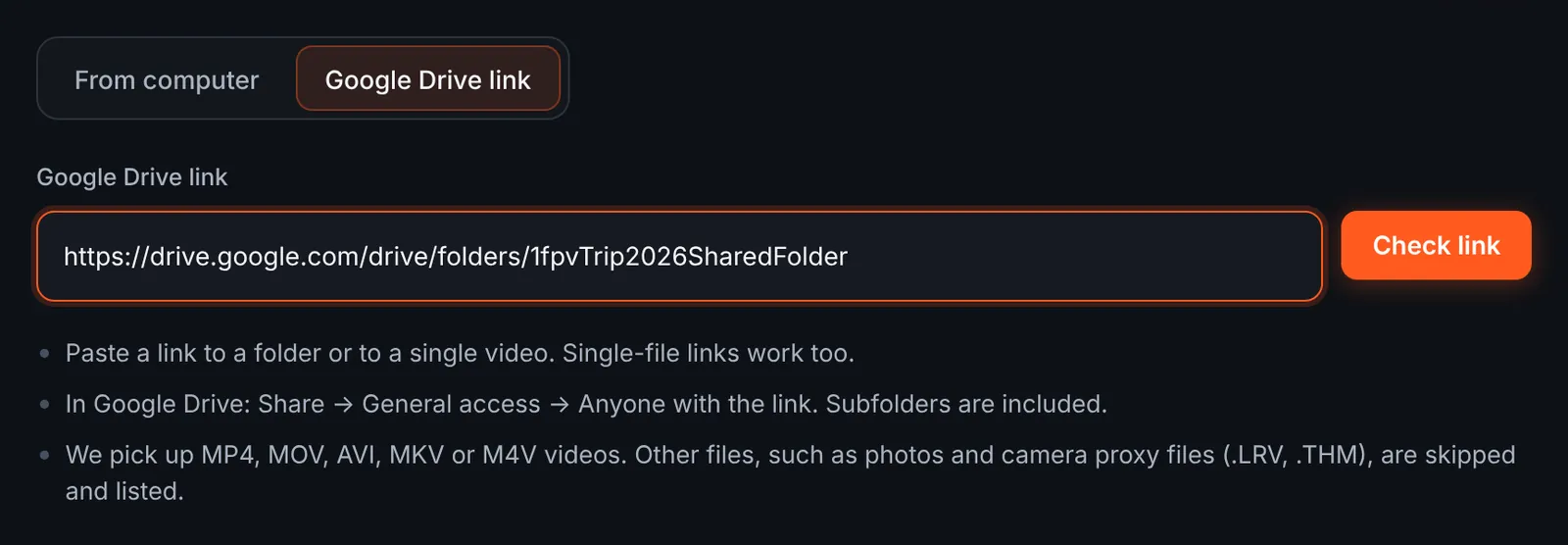
An FPV session sent as a Drive folder. -
Untick crashed or empty packs
The review screen lists each pack with its length. Remove the ones that are only a few seconds before a crash, if you like, and leave the rest ticked. Files that are not supported videos are skipped and explained in the skipped list.
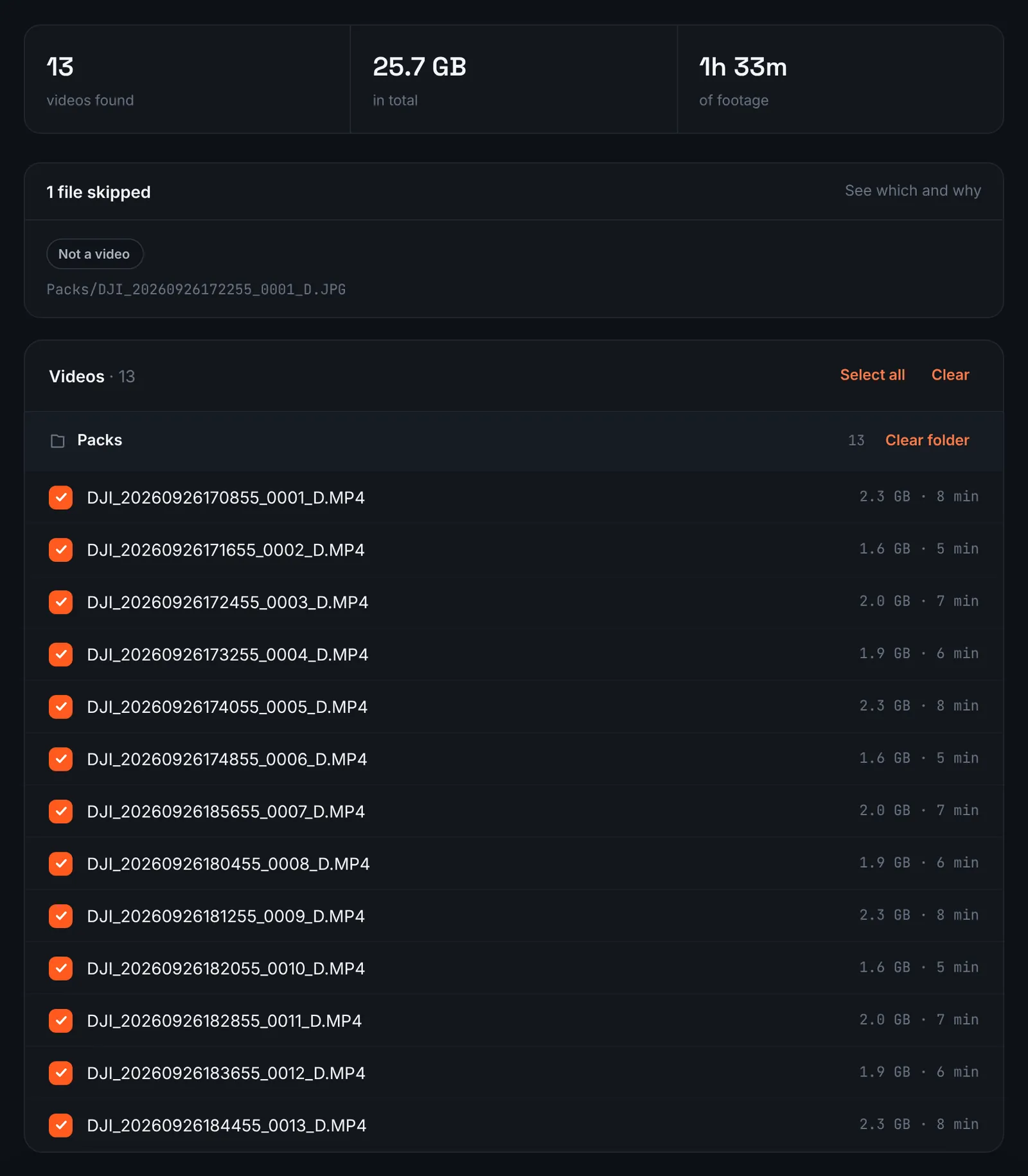
FPV packs found in Drive, ready to download. -
Pay and let the packs be analysed
Every pack counts toward one total, and that total alone sets the cost ($9.90 for up to 1 hour, $19.90 for up to 6 hours, $39.90 for up to 12 hours, $79.90 for up to 24 hours). Orders under 1h of footage are processed first and paid later: you watch a watermarked 480p preview and pay only to unlock the 4K and 1080p files. After paying, leave the page; the scoring of the packs happens on the server.
-
Choose a punchy length
FPV edits work best fast and tight. The choose screen shows each quality level with its number of clips and estimated duration, worked out from the moments the analysis found in your packs; the top levels keep only the sharpest lines.
Leave the generated soundtrack on for a beat-driven cut, or switch it off to add your own music later. For 3 days after the highlight is ready you can re-cut it to another length or switch the music on or off without a new upload: the first 3 re-cuts are free, each one after that is $2.90.
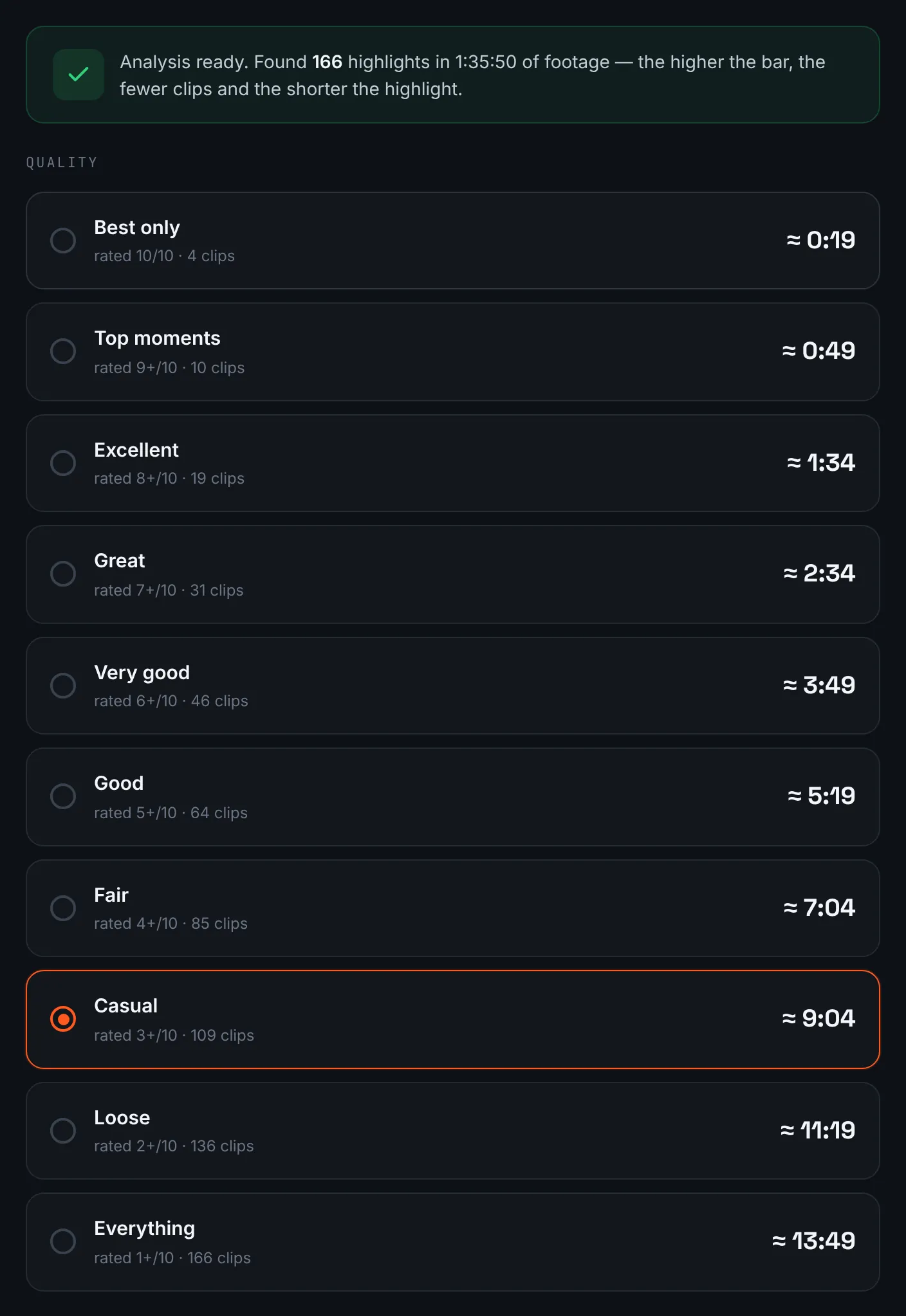
The top quality levels give a short, fast FPV cut. -
Download the FPV highlight
Pull the 4K render for YouTube and the 1080p one for the group chat; links and files are kept for 14 days.
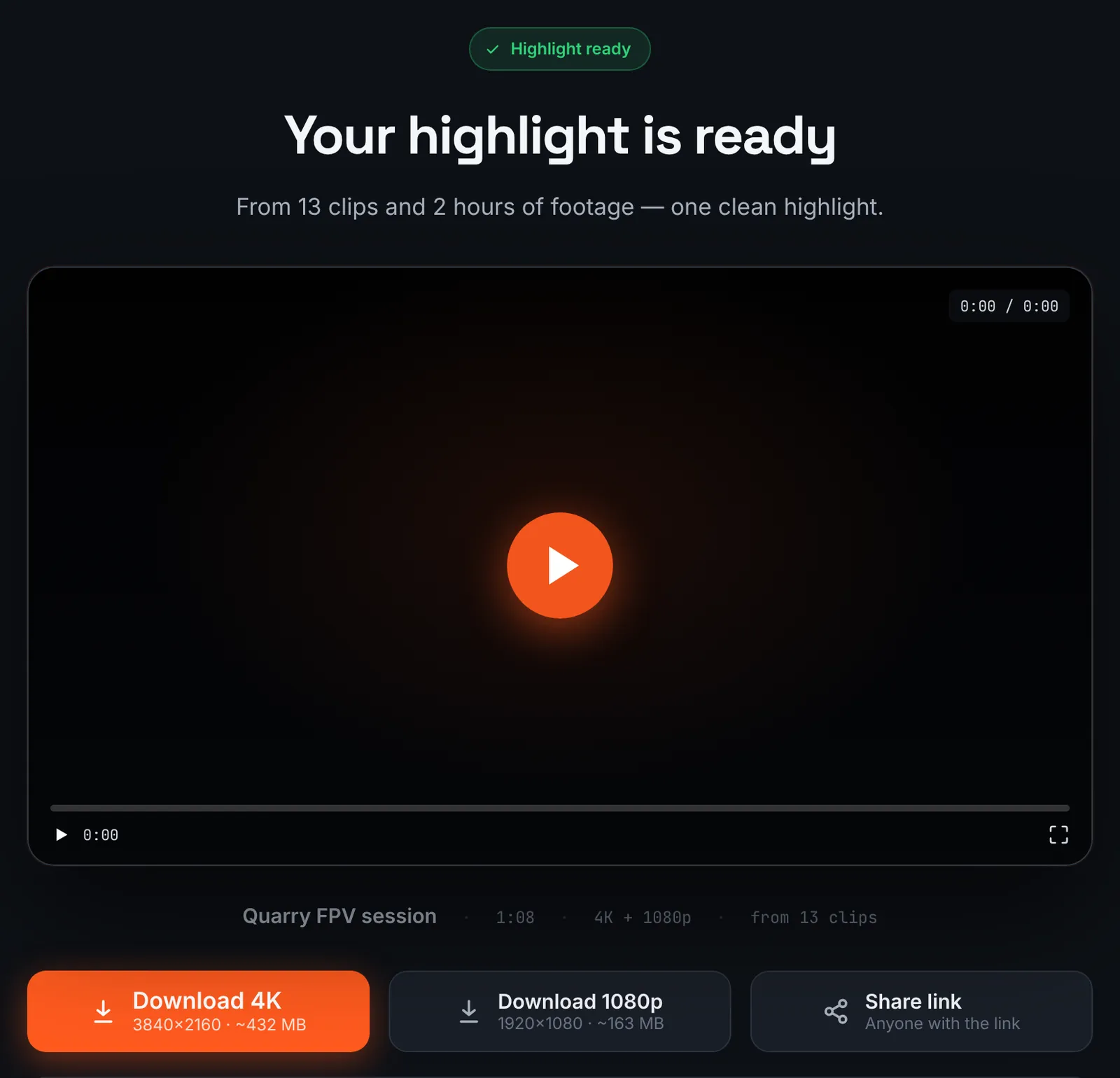
The FPV highlight, ready to share.
Common mistakes and how to fix them
- Battery and altitude numbers on screen
- You uploaded the goggles recording with its on-screen display. Use the aircraft files instead.
- Gyroflow cannot stabilise the clip
- The clip was filmed with RockSteady on or in Ultra-wide or Normal FOV. Gyroflow needs stabilisation off and the Wide FOV.
- Propellers in the frame
- On a Cinewhoop a tilted camera can catch the props. Adjust the camera mount or uptilt before the next session.
- Footage feels too slow
- Pick a higher quality level on the choose screen; it keeps fewer, faster clips.
Doing it by hand vs with RawClip
FPV editing is about rhythm. Here is what changes between cutting packs yourself and letting RawClip do it.
| Aspect | By hand | With RawClip |
|---|---|---|
| Stabilisation | Gyroflow, then your editor | Gyroflow or in-camera, then upload |
| Finding the lines | Scrub each pack for the best gaps and dives | Moments ranked across all packs |
| Cutting to music | You match cuts to the beat | Generated soundtrack synced to the cut |
| Effects | Speed ramps, freeze frames, titles | Length and music only |
| Cost | Your time and editor | $9.90 for up to 1 hour, $19.90 for up to 6 hours, $39.90 for up to 12 hours, $79.90 for up to 24 hours |
A freestyle edit with speed ramps and timing to a chosen track needs hand editing. A recap of a weekend of packs is a good fit for an automatic highlight.
Try it with your own footage
Orders under 1h of footage are processed first and paid later: you watch a watermarked 480p preview and pay only to unlock the 4K and 1080p files. Pricing is per order and depends only on how much footage you send: $9.90 for up to 1 hour, $19.90 for up to 6 hours, $39.90 for up to 12 hours, $79.90 for up to 24 hours.